

To migrate CRM data to a self-hosted CRM, export every record type from your subscription CRM as CSV, map the fields to the new system, import in dependency order, and run the import twice: a dry run on a copy, then a final pass on cutover day. Companies, contacts and deals move cleanly. Activity history, attachments and opt-out flags are where most migrations quietly lose data.
TL;DR:
- Export every object, not just contacts: companies, deals, notes, tasks, activities, attachments and unsubscribe lists each need their own file.
- Clean before you import. Normalize phones to E.164, dates to ISO 8601, and keep the old record ID in a custom field.
- Import in dependency order (companies, contacts, deals, activities), and do a dry run on a copy before the real one.
- Carry over opt-outs and consent status, or you will email people who already told you to stop.
- Keep the old subscription for one overlap period, verify record counts, then cancel and ask the vendor to delete your data.
Table of Contents
- How To Migrate CRM Data to a Self-Hosted CRM, in Seven Steps
- Before You Export: Contract Terms, Export Limits and the Overlap Month
- What To Move, What To Clean, and What To Leave Behind
- Clean and Map the Data: How To Move Data From One Database to Another
- Import Order, Dry Runs and the Cutover Weekend
- Email, Calls and Chats: Where a Microsoft 365 Migration Tool Fits
- Choosing the Target and Setting It Up: Similar CRMs and Setup Order
- Opt-Outs, Consent and Deleting the Old Copy
- Get a Self-Hosted CRM You Can Import Into on Day One
- Frequently Asked Questions
- Sources
How To Migrate CRM Data to a Self-Hosted CRM, in Seven Steps
A migration is a file-moving job with a few traps in it. You do not need a consultant, but you do need a sequence. This is the one we would follow:
- Read your contract. Find the renewal date, the notice period and any export limits.
- Inventory your data. List every record type, not only contacts.
- Clean and map. Fix formats, merge duplicates, and decide which old field lands in which new field.
- Set up the new server. Create users, brands, pipeline stages and custom fields before any data arrives.
- Dry run. Import a full export into a copy and fix what breaks.
- Cut over. Import a fresh export, then only the records changed since the dry run.
- Verify and close out. Reconcile counts, cancel the subscription, and request deletion of the old copy.
If you are still deciding whether a one-time license beats a monthly plan, the full cost breakdown covers that. The rest of this article assumes you have decided and want your data moved.
Before You Export: Contract Terms, Export Limits and the Overlap Month
Start with the contract, because it sets your deadline. Find the renewal date and the cancellation notice period. An annual plan that auto-renews in three weeks, with a 30-day notice requirement, has already renewed.
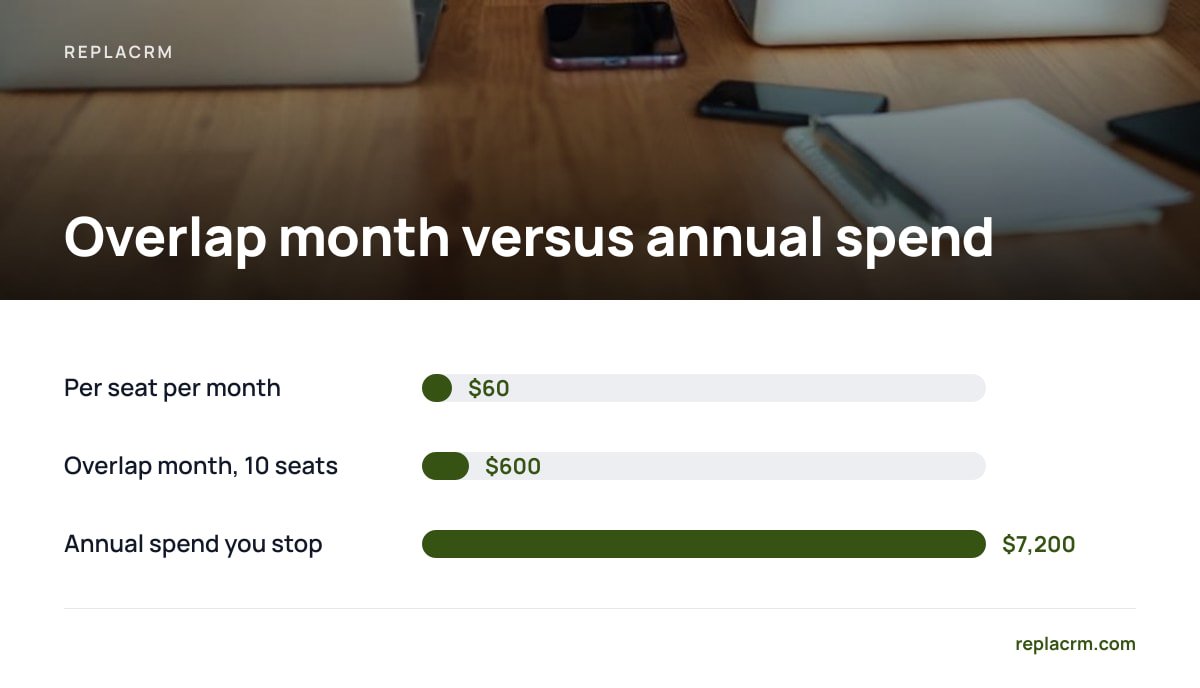
Plan to pay for both systems for one billing period. Suppose you have 10 seats at $60 per seat per month (an example, not a quote). The overlap month costs $600. That is cheap insurance against finding a missing field after you have canceled, and the annual figure you stop paying once the move is done is $7,200. A line-by-line look at add-on charges shows how that annual figure often grows beyond the seat price.
Check what the built-in export gives you. Many hosted CRMs export one object at a time, cap file sizes, or leave out attachments and call recordings. Open each file and confirm it has the columns you expect. Look for a notes file separate from the contacts file, because notes are the most commonly missed export.
What To Move, What To Clean, and What To Leave Behind
Moving everything is usually the wrong call. Eight years of closed-lost deals and auto-logged email opens will slow your search and clutter every customer record. Decide record type by record type.
| Record type | Move it? | How |
|---|---|---|
| Companies and contacts | Yes, all | Dedupe first, keep legacy ID |
| Open deals | Yes, all | Map stages one-to-one before import |
| Closed-won deals | Yes, all | They are your revenue history |
| Closed-lost deals | Last 24 months | Older ones rarely get reopened |
| Notes and call logs | Yes | Often a separate export file |
| Auto-logged email opens and clicks | Skip | Low value, high volume |
| Attachments and contracts | Yes, selectively | Download in bulk, re-link by legacy ID |
| Unsubscribe and consent status | Yes, first | Legal exposure if lost |
| Reports and dashboards | Rebuild | They do not export in a usable form |
The cutoff for closed-lost deals is a judgment call. Twenty-four months is a good default because most small-business sales cycles end well inside that window. If your cycles run longer, extend it. For a sense of which fields a small team uses day to day, this feature rundown helps you decide what to map and what to drop.
Clean and Map the Data: How To Move Data From One Database to Another
You may search for this as "migrate data from one database to another," and the answer depends on your access. With a subscription CRM you do not have database access. You get CSV exports and an API. Copying a database directly only works when you control both ends and the schemas are close. Otherwise the process is always the same: export, transform, stage, load, reconcile.
Three formatting rules prevent most failed imports:
- Quote your text fields. The CSV format, described in RFC 4180, requires fields containing commas, quotes or line breaks to be wrapped in double quotes, with inner quotes doubled. Multi-line notes are the usual offender.
- Normalize phone numbers. The ITU's E.164 standard caps international numbers at 15 digits. Store them as +14155552671 and calling and texting will work without guesswork.
- Use one date format. ISO 8601 writes dates as 2025-03-14, which no importer misreads as day-first or month-first.
A single unquoted comma in a notes field can shift every column after it by one, and some importers still report success.
Add one column of your own: the old system's record ID. Store it in a custom field called legacy_id on every imported record. It lets you re-link attachments, rerun a failed batch without duplicating anything, and answer "where did this record come from?" a year from now.
Deduplicate before importing. Merging two contacts in a new system means deciding whose notes win, with no undo. In a spreadsheet it takes one sort on email address.
Import Order, Dry Runs and the Cutover Weekend

Import parents before children: companies, then contacts, deals, notes, tasks and activities. A deal loaded before its company has nothing to attach to, and many importers will either reject it or create an orphan.
If you run several brands, import each brand's customers as its own batch into its own brand space. This keeps customers separate from the first day. A person who buys from two of your brands becomes two records, one per brand, which is how a multi-brand setup is meant to work.
Do the dry run on a copy. Load your complete export, then spot-check 20 records by hand against the old system: the contact, its company, the deal amounts, the last three notes and the owner. Fix the mapping, wipe the copy and run it again until the 20 match.
Import a full export during the week, then on cutover weekend load only records modified since that export. The delta is a few percent of the data and takes minutes.
Pro Tip: Map record owners by email address, not by display name. Names change, get abbreviated and collide, and an importer that cannot match "Sam R." to a user will silently assign the record to the admin. Create every user in the new system first, with the same email they used in the old one, and every deal will land with the right person.
After the final import, reconcile counts: contacts in the export versus contacts in the new system, open deal value in each, and number of notes. Matching totals tell you more than any single spot check.
Email, Calls and Chats: Where a Microsoft 365 Migration Tool Fits
People often ask which Microsoft 365 migration tool to use. For a CRM move, you probably do not need one. Microsoft's mailbox migration tooling in the Exchange admin center moves mailboxes between tenants or from other mail servers. That is a different job from moving customer history.
Leave the mailboxes where they are and connect them to the new CRM over IMAP or your mail provider's standard connection. Then import the history you want attached to customer records: past emails exported from the old CRM, plus call logs and chat transcripts. If you must move mailboxes too, use the vendor's own tool, and do it as a separate project on a separate weekend.
A unified inbox changes what you migrate. If your new CRM puts chats, tickets, form submissions, email and calls on one customer record, import those histories keyed by the customer's email or phone number, so the timeline is complete from day one. If you use the ReplaChat and ReplaTicket integrations, past conversations and tickets can attach to the same record.
Choosing the Target and Setting It Up: Similar CRMs and Setup Order
Readers also ask which CRM is similar to the one they are leaving. Similarity of data model matters more than similarity of interface. Any CRM that has companies, contacts, deals with stages, and activities will take your export with small mapping changes. A system missing one of those four, such as one with no company object, forces you to flatten your data, and flattened data does not unflatten.
To set up a CRM system before the import, follow this order. It takes a day or two for a small business, and the order saves rework:
- Install on your server and confirm backups work before any customer data arrives.
- Create brands if you run more than one business.
- Create users with the same emails as in the old system.
- Build pipeline stages to match your old stage names exactly. Rename them later.
- Add custom fields, including
legacy_id. - Connect email, phone and chat channels.
- Run the dry-run import.
If customers self-book appointments, export upcoming appointments and import them as scheduled events. Reminder logic then needs rebuilding, and this working plan for appointment reminders walks through it.
Opt-Outs, Consent and Deleting the Old Copy
Import your unsubscribe list first, as a flag on each contact. If you load contacts without it, your first campaign in the new system will email people who already opted out. In the US, the FTC's CAN-SPAM compliance guide says you must honor an opt-out request within 10 business days, and a migration is no excuse for missing one.
Also carry over any consent records: where and when a person agreed, and to what. If your old CRM stored these as a custom field or inside notes, find them before the export, not after.
Finish by closing out the old copy. Under the EU's GDPR, Article 28(3)(g) says a processor must, at your choice, delete or return all personal data when the service ends, unless law requires storage. Whether or not GDPR applies to you, send the vendor a written request to delete your data after your verification period, and keep their confirmation. Hold a read-only copy of your final export for 12 months in case a question comes up.
Get a Self-Hosted CRM You Can Import Into on Day One
Replacrm is a self-hosted CRM sold as a one-time license from $1,495. It has no per-user fees and no cap on brands, users or customers, so a 30-person team costs the same as a 3-person one. It builds each customer's record from chats, tickets, form submissions, email and calls, and keeps each brand's customers separate under one login. That fits the plan above: import each brand as its own batch, keep the sales board stages aligned with your old pipeline, and attach history to a single record.
Check one limit first. You run the server, so you also own backups, updates and uptime, and you should test a restore before you import anything. Confirm which file formats and record types the current version imports on the spec sheet, and run your dry run against a copy before you commit. If your old export has a data type the importer cannot take, you want to learn that before you cancel.
Frequently Asked Questions
How long does it take to migrate CRM data to a self-hosted CRM?
For a small business with under 50,000 records, plan for one to two weeks of part-time work. Most of that time goes into cleaning duplicates and mapping fields. The imports themselves usually take minutes to a few hours.
Can I move everything, including emails and attachments?
Usually yes, but not in one file. Contacts, companies and deals export as CSV, while attachments need a bulk download and email history often needs a separate export. Check each file for completeness before you cancel the old subscription.
What is the best Microsoft 365 migration tool for a CRM move?
You probably do not need one. Microsoft's built-in mailbox migration tools in the Exchange admin center move mailboxes, which is a separate job from moving CRM records. For a CRM migration, connect your existing mailboxes to the new system and import the history you want attached to customers.
How do I avoid duplicate records during import?
Deduplicate in a spreadsheet by email address and phone number before you import, and store the old record ID in a legacy ID field. If a batch fails, the legacy ID lets you rerun it without creating copies.
Should I cancel my old CRM right after the import?
No. Keep it for one overlap period, reconcile record counts and open deal value, and let your team work in the new system for a few weeks. Then cancel, request deletion of your data in writing, and keep a read-only copy of the final export.
Sources
- RFC 4180: Common Format and MIME Type for CSV Files | IETF
- E.164: The international public telecommunication numbering plan | ITU
- ISO 8601 Date and time format | International Organization for Standardization
- CAN-SPAM Act: A Compliance Guide for Business | Federal Trade Commission
- Regulation (EU) 2016/679 (General Data Protection Regulation) | EUR-Lex, European Union
Leave a Reply