
Author: admin

  • Steps Before Migrating Data to a CRM, in the Right Order

    Steps Before Migrating Data to a CRM, in the Right Order

    The steps before migrating data to a CRM come down to six jobs: decide what is worth moving, clean and deduplicate it at the source, map every field and pipeline stage, back up the original, test a small import, and plan the cutover. Skip the first two and you pay later. A duplicate takes seconds to delete in a spreadsheet and hours to untangle once it is linked to deals, tickets and emails.

    TL;DR:

    • Decide what to move before you touch a file: records with no activity in years usually stay in an archive, which also reduces your privacy exposure.
    • Deduplicate and standardize at the source. Fix phone numbers, dates and email addresses while the data is still in a spreadsheet.
    • Map fields and lifecycle stages on paper first, and migrate only fields that a report, an automation or a person will actually use.
    • Test with 50 records, including your ugliest ones, then load parent records (companies) before children (contacts, deals, activities).
    • Carry opt-out and consent flags across, keep a read-only backup, and run old and new systems in parallel before you cancel anything.

    Table of Contents

    Do You Need a CRM in 2026, or Just a Cleaner Spreadsheet?

    You need one once more than one person touches customer records, or once you have a few hundred contacts with live conversations. Below that, a well-kept spreadsheet does the job, and moving early only gives you a new place to be disorganized. If you run several brands, the tipping point arrives sooner, because keeping each brand's customers separate in a single sheet breaks down fast.

    The annual price is covered in How Much a CRM Costs Per Year for 10 Users. The part buyers forget to count is migration labor. Cleaning, mapping and testing take days of someone's time, and our real CRM implementation timeline shows where those days go.

    The Steps Before Migrating Data to a CRM, in Order

    A data migration has eight phases, and five of them happen before a single record is loaded. Most guides spend their pages on the load itself, but the work that decides whether the migration succeeds sits in the first five rows.

    Phase When What you produce
    1. Scope Before load A written list of objects to move (companies, contacts, deals, notes, files) and what stays behind
    2. Audit Before load Record counts, field fill rates, and a list of known problems
    3. Clean Before load A deduplicated, standardized export
    4. Map Before load A spreadsheet matching every source field to a destination field
    5. Test import Before load A 50-record trial and a list of fixes
    6. Full load Load Records imported in parent-to-child order
    7. Validate After load Count reconciliation and spot checks
    8. Cutover After load A freeze date, a delta import, and a parallel-run period

    The sections below cover phases 1 through 5 in detail, then the import itself and the cutover.

    Audit First: Decide What Is Worth Moving

    Two coworkers in a small shop discuss a row of storage boxes on a shelf.

    Start by counting. Export every source you use (old CRM, email contacts, support tool, spreadsheets, form tools) and record how many rows each holds, how many have an email address, and how many have any activity in the last 24 months.

    Most businesses find that a large share of their records are dead weight. Researchers writing in Harvard Business Review found that 47% of newly created data records had at least one critical error, and that was in new records, before years of decay. Old records are worse.

    There is also a legal reason to prune. Under the EU's General Data Protection Regulation, personal data must be adequate and limited to what is necessary (Article 5(1)(c)) and kept no longer than needed (Article 5(1)(e)). Loading ten years of stale contacts into a fresh system is a processing decision you will have to defend.

    Our default rule: archive any contact with no purchase, reply, ticket or booking in 36 months, and keep that archive as a read-only file instead of loading it. Adjust the window for your sales cycle. A business that sells roofs every 15 years needs a longer one.

    Clean and Deduplicate Before You Import

    Clean in the source file. Once records are in the new CRM and attached to deals, tickets and emails, every merge becomes a decision about which history survives.

    What to fix in the export

    • Duplicates. Match on email first, then on phone, then on name plus company. Keep a merge log (old ID, surviving ID) so you can trace any record later.
    • Phone formats. Convert to the international format defined in ITU-T E.164, which starts with a plus sign and a country code. Calling and texting tools expect it.
    • Dates. Use one format, ideally ISO 8601 (2026-03-14), so day and month never swap during import.
    • Encoding and structure. Save CSVs as UTF-8 and follow the quoting rules in RFC 4180. An unescaped comma inside a company name shifts every column to its right.
    • Free-text values. Collapse "NY", "N.Y." and "New York" into one value before they become three filter options.

    E.164 caps an international phone number at 15 digits, so any "phone" value longer than that in your export is a typo, a pasted note, or two numbers jammed into one cell.

    Aggressive deduplication can destroy real information, such as two people at one company who share a generic inbox. Merge automatically only on exact email matches, and review fuzzy name matches by hand.

    Map Fields and Stages Before You Touch the Import Screen

    Mapping is a spreadsheet with three columns: source field, destination field, and a transformation note. Fill it in before you open any import tool.

    Your pipeline has to be mapped as well. The classic stages in a CRM are lead, qualified lead, opportunity, customer, and repeat or retained customer. Your old system probably names them differently, and some will not line up one to one. Write the conversion down.

    Old stage name New stage Note
    "Cold" Lead Check whether it includes unqualified purchased lists
    "Demo done" Opportunity Move the demo date into an activity record
    "Won" Customer Carry the close date and amount
    "Lost – price" Closed lost Keep the reason as its own field

    Pro Tip: Add a custom field called "Source ID" and fill it with the record's ID from the old system. It costs one column, and it lets you re-run a failed batch without duplicating anything, trace any odd record back to its origin, and reconcile counts after the load.

    Migrate a field only if a report, an automation or a specific person will use it. Moving all 140 custom fields from the old system recreates the clutter you are trying to leave. If you run several brands, add a brand field to every record now, so each brand's customers stay separate from day one.

    How to Import Data to Your CRM: Three Methods and When Each Fits

    There are three ways to import data to a CRM, and the right one depends on volume and on whether the old system keeps running.

    • CSV upload. Best for one-time moves of a few thousand to a few tens of thousands of records. It is simple, and every CRM supports it. It handles flat data well and relationships poorly, so import in parent-to-child order: companies, then contacts, then deals, then notes and activities.
    • API or connector. Best when the old and new systems run side by side, or when you need to carry attachments and message history. It takes developer time, and it is the only practical route for ongoing sync.
    • Direct database load. Best for self-hosted systems where you control the database and have a developer on hand. It is the fastest route and the easiest to corrupt, so test it on a copy.

    For most small businesses, CSV in batches is the right call. Run a trial first: take 50 records, including your 10 ugliest (missing emails, odd characters, duplicate names), and import them into a test environment. Fix what breaks, then do it again. If your destination is self-hosted, migrating CRM data to a self-hosted CRM without losing history covers the extra steps for conversations and attachments.

    Opt-out status has to move with the contact. A person who unsubscribed in the old system and appears as active in the new one gets emailed again, which can breach the FTC's CAN-SPAM requirements (opt-outs must be honored within 10 business days) and, for EU contacts, the consent rules in the GDPR. Export the unsubscribe flag, the consent date and the consent source as separate fields.

    Back up and freeze

    Save a complete, read-only export of every source before the first import, and store it somewhere other than the machine you work on. Then pick a freeze date. After that date, nobody edits the old system, or you run a short delta import for anything changed since.

    Run both systems in parallel

    Keep the old system alive for two to four weeks after cutover. Check your contract for the cancellation window, and confirm you have export rights before you give notice. If the old vendor is shaky, vet its stability early so you are not forced into a rushed move.

    Validate After the Load: Counts, Spot Checks, and a Rollback Line

    Validation takes an hour and catches most disasters. Compare record counts per object between the source file and the new CRM, allowing for the duplicates you removed on purpose. Then open 25 random records and compare every field against the source, including at least five with attachments or long note histories.

    Set a rollback line before you start. For example: if more than 2% of spot-checked records have wrong data, delete the batch and reload. Decide the number in advance, because during a live migration nobody wants to be the person who calls it.

    Last, rebuild your reports on the new data and compare the totals with last month's numbers from the old system. If pipeline value differs by more than your tolerance, a stage mapping is wrong.

    Move Your Cleaned Data Into a CRM With No Per-User Fees

    Once your data is clean and mapped, the destination matters. On a per-seat subscription, every user you add to the migration team raises the monthly bill. Replacrm is a self-hosted CRM sold as a one-time license from $1,495, with no per-user fees and unlimited brands, users and customers. Chats, tickets, form submissions, email and calls land on one customer record, and each brand's customers stay separate under one login. For ways to cut recurring costs in general, see how to reduce CRM costs beyond the monthly subscription.

    The caveat: self-hosted means you run the server. You are responsible for hosting, backups and updates, so budget for that and confirm the technical requirements on the spec sheet before you buy. If nobody on your team can manage a server, plan for outside help.

    Frequently Asked Questions

    What are the phases of a data migration project?

    A data migration has eight phases: scope, audit, clean, map, test import, full load, validate, and cutover. The first five happen before any real data moves, and they decide most of the outcome. Validation and a parallel-run period follow the load.

    How can we import data to my CRM?

    Most small businesses use a CSV upload, loading companies first, then contacts, then deals and activities. An API or connector suits ongoing sync and message history, and a direct database load suits self-hosted systems with a developer on hand. Whatever the method, run a 50-record test first.

    Do you really need a CRM in 2026?

    You do once several people share customer records or you have a few hundred contacts with active conversations. A solo operator with a small list can stay on a spreadsheet. Multi-brand owners usually outgrow spreadsheets sooner because separating customers by brand gets messy.

    What are the stages in CRM?

    The usual customer lifecycle stages are lead, qualified lead, opportunity, customer, and repeat or retained customer. Your old system may name them differently, so write a stage-by-stage conversion table before import. Unmapped stages are a common cause of broken pipeline reports.

    How long should I keep the old system after migrating?

    Keep it for two to four weeks after cutover, read-only if possible. That gives you time to catch missing records and compare reports. Check your contract's cancellation terms and export rights before you give notice.

    Sources

  • Costs of Integrating a CRM With Other Software: The Full Bill

    Costs of Integrating a CRM With Other Software: The Full Bill

    The costs of integrating a CRM with other software come in three layers: the one-time setup, the monthly connector or middleware fees, and ongoing maintenance. Most quotes leave maintenance out. In the worked example below, five integrations on a middleware plan cost about $14,800 over three years, and roughly half of that is upkeep. Choose the integration path before you choose the CRM.

    TL;DR:

    • Integration cost has three layers: setup (once), connector or middleware fees (monthly), and maintenance (forever). Most quotes cover only the first.
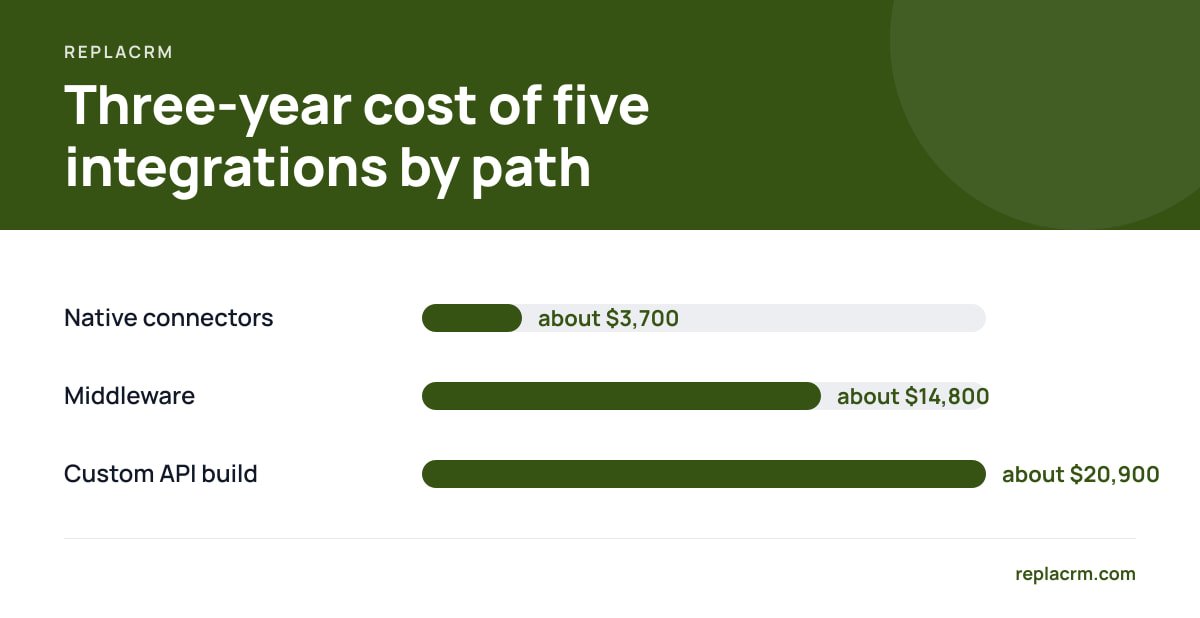
    • In our three-year example, five integrations cost about $3,700 on native connectors, $14,800 on middleware and $20,900 on a custom API build.
    • Linking a CRM to an ERP is routine. Decide up front which system owns the customer record, and sync only IDs, statuses and totals.
    • Every connected app is a data processor under privacy law and an attack surface. Budget for the contracts and access reviews.
    • A CRM that already holds chats, tickets, forms, email and calls on one record removes several integrations.

    Table of Contents

    What Is the Cost of a CRM? The License Is Only One of Five Bills

    A CRM's cost has five lines: the license or subscription, integration setup, connector or middleware fees, maintenance, and data cleanup. Buyers compare the first line and get surprised by the other four. For the license figure on a ten-person team, see how much a CRM costs per year for 10 users. This article covers everything that sits beside that number.

    Integration gets underestimated because a demo shows a connector switched on in two clicks. It does not show the field mapping, the duplicate contacts, the expired login token in month seven, or the afternoon someone spends working out why invoices stopped appearing on customer records.

    If you are already trying to shrink the total, how to reduce CRM costs beyond the monthly subscription covers the other levers. Integration is the one people forget.

    The Costs of Integrating a CRM With Other Software, Line by Line

    The table below gives planning ranges. They are our estimates from typical small-business projects, not published benchmarks, so replace them with real quotes before you commit.

    Cost line Planning range How often
    Discovery and field mapping 4 to 12 hours Once per integration
    Native connector $0 to $30 per month per app Monthly
    Middleware plan $20 to $300 per month, scaling with task volume Monthly
    Custom API build 40 to 150 developer hours Once
    Maintenance 1 to 3 hours per month, or 10 to 20 percent of build cost per year Ongoing
    Data cleanup before the first sync 5 to 30 hours Once
    Staff training 1 to 2 hours per user Once, plus turnover

    Three of these lines deserve a closer look:

    • Data cleanup. Syncing two dirty databases produces one larger dirty database. Merging duplicates and standardizing phone and country formats before the first sync is cheaper than fixing them after. If you are also moving records between systems, the steps in migrating CRM data without losing history apply here too.
    • Task-based pricing. Middleware charges by the number of automated actions. A sync that touches every contact on every update can burn through a plan in a week. Filter by trigger, such as "deal stage changed", instead of syncing everything.
    • Maintenance. Apps rename fields, retire API versions and change permissions. Each change can break a sync without any error message, so plan for it as a recurring cost.

    Native, Middleware or Custom Code: Which Integration Path Costs Least

    Pick the native connector when one exists and covers the fields you need. Use middleware when you have a few integrations and no developer. Build custom only when volume or logic makes the other two painful. That is the order we would choose in, and the numbers show why.

    Here is a three-year comparison for five integrations: email, accounting, helpdesk, web forms and calendar. The assumptions are $100 per hour for setup and upkeep, $120 per hour for a developer, and the maintenance figures shown.

    Path Setup Fees (36 months) Maintenance (36 months) Three-year total
    Native connectors $1,000 (10 hours) $900 $1,800 (0.5 hour per month) about $3,700
    Middleware $4,000 (40 hours) $3,600 ($100 per month) $7,200 (2 hours per month) about $14,800
    Custom API build $14,400 (120 hours) none $6,480 (15% of build per year) about $20,900

    Five integrations on a middleware plan cost about $14,800 over three years in this example, and $7,200 of that is maintenance.

    Native connectors cost least but only cover what the vendor decided to support. Middleware is flexible but unpredictable, because task counts grow with your business. Custom code has the highest floor and the fewest surprises, since you control the logic.

    Pro Tip: Authorize every integration with a dedicated service account, never a staff member's personal login. OAuth 2.0, the framework defined in IETF RFC 6749, issues access tokens with limited lifetimes and renews them through a refresh token tied to the account that authorized the connection. When that employee leaves and their account is disabled, the sync dies. Also create one test contact and check monthly that it appears correctly in every connected system. That catches silent failures in minutes.

    When you evaluate a vendor's API, ask whether it publishes a machine-readable description in the OpenAPI Specification. A documented API lets a developer scope the work accurately. With an undocumented one you pay for exploration. It is also worth checking how stable the vendor is, because a vendor that retires its API on short notice hands you a rebuild bill.

    Three-year cost of five integrations by path: Native connectors about $3,700; Middleware about $14,800; Custom API build about $20,900

    The 7 Components of a CRM and Where Each One Gets Expensive

    Sources vary on the exact list, but a CRM is commonly split into seven components. Each one has a different integration profile.

    Component Usually connects to Where the cost hides
    Contact and account management Email, accounting, ERP Duplicates and conflicting records
    Sales pipeline and deal tracking Quoting, e-signing, accounting Stage names that mean different things in each tool
    Interaction history (email, calls, chat) Phone system, inbox, chat widget Volume. Every message is a record
    Customer support and ticketing Helpdesk, knowledge base Two-way sync of status and ownership
    Scheduling and bookings Calendar, video, payments Time zones and double bookings
    Lead capture and marketing Forms, ad platforms, email tools Consent flags and source attribution
    Reporting and automation Spreadsheets, BI tools Maintaining definitions across systems

    Components built around many-to-many data, meaning interaction history and support, cost the most to connect. Those with a single source of truth, such as bookings, cost the least. If you are deciding which components you need at all, the CRM features small sales teams need separates the essentials from the extras.

    Can a CRM Be Integrated With ERP? Yes, and Here Is the Catch

    Yes. Linking a CRM to an ERP is one of the most common integrations, and it takes one of three forms: a vendor-supplied connector, middleware, or a custom API build. Expect the high end of the ranges above, because ERP data models are large and strict.

    The cost driver is the decision, not the code. You have to settle which system owns each type of data:

    • Customer identity. One system creates the customer. The other receives it. If both can create, you will have duplicates within a month.
    • Products and prices. Usually the ERP owns these. The CRM reads them when building quotes.
    • Orders and invoices. The ERP owns them. The CRM should show totals and payment status on the customer record, not copy every line item.
    • Credit and payment status. Sync this one-way from ERP to CRM so salespeople see overdue balances before they call.

    Our advice is to start one-way, ERP to CRM, for payment status and order totals. Add the reverse direction only when a specific workflow demands it. Two-way syncs are where most ERP integration budgets overrun, because every conflict needs a rule.

    Who Competes With the Enterprise CRM Leaders, and Why It Changes Your Integration Bill

    The market leaders in enterprise CRM face competition in four categories, and each one prices integration differently.

    • Other large enterprise suites. They sell a broad platform with its own marketplace of add-ons. Integration is often paid per connector or per API call tier, and the line items add up. We itemize that in the true cost of enterprise CRM add-ons.
    • Mid-market all-in-one platforms. They bundle sales, marketing and service. You need fewer integrations but pay for modules you may not use.
    • Small-business pipeline tools. They are cheap per seat and rely on middleware for anything beyond email and calendar.
    • Self-hosted and open options. You pay once or pay for hosting, own the database, and can reach it directly. The trade-off is that you run the server.

    Brand price matters less than how many separate tools your customer data lives in. Every extra tool is an extra integration.

    Hidden Integration Costs: Privacy Contracts, API Security and Breakage

    Each connected app that touches personal data creates legal and security work that rarely appears on a quote.

    Under the EU's General Data Protection Regulation, Article 28 requires a binding contract whenever a processor handles personal data on your behalf.

    Every app wired into your CRM that handles customer data is a processor under GDPR Article 28, and each one needs a written contract.

    Even if you are not in the EU, many US state privacy laws and your own customers' contracts ask similar questions. Keep a list of every connected app and what data it receives.

    On the security side, the OWASP API Security Top 10 lists broken object-level authorization as its first risk. In plain terms, an integration with a broad API key can often read records it should never see. Budget a quarterly review of which keys exist, what they can reach and who holds them.

    Breakage is the third hidden cost. When a sync fails, someone has to notice. If nobody owns the monitoring, a customer finds the error. Give each integration a named owner and an alert that goes to a real inbox.

    Cut the Integration Bill by Keeping Customer Conversations in One Place

    Most of the integrations in our example exist to move chats, tickets, forms, email and calls into one record. Replacrm is a self-hosted CRM that already holds all of them on a single customer record, so those connections are not a recurring cost. It also keeps each brand's customers separate under one login, and adds a sales board, customer self-booking, e-signing, and calling and texting. It connects directly to ReplaChat and ReplaTicket. The price is a one-time payment from $1,495, with no per-user fees and unlimited brands, users and customers.

    Replacrm does not remove every integration. Accounting software, an ERP or a payment processor still has to be connected, and the cost lines above apply to those. You also host it yourself, so server updates and backups are your responsibility. Check the spec sheet for the connections you need, ours included, before you buy.

    Frequently Asked Questions

    What is the cost of a CRM?

    A CRM has five cost lines: the license or subscription, integration setup, connector or middleware fees, maintenance and data cleanup. The license is the visible one, and for a small team the others can match it within a few years. The per-user license figure is covered in our guide to a ten-user CRM's yearly cost.

    What are the 7 components of CRM?

    A common breakdown is contact management, sales pipeline, interaction history, customer support, scheduling, lead capture and marketing, and reporting. Lists vary by source. Interaction history and support usually cost the most to integrate, because many records move in both directions.

    Can CRM be integrated with ERP?

    Yes, through a vendor connector, middleware or a custom API build. The biggest cost is deciding which system owns customers, products, orders and payment status. Starting with a one-way sync from ERP to CRM keeps the budget under control.

    Who are the main competitors of the enterprise CRM leaders?

    They fall into four groups: other large enterprise suites, mid-market all-in-one platforms, small-business pipeline tools and self-hosted options. Each group prices integration differently, so compare the number of separate tools you would need to connect as well as the license price.

    How much should I budget each year to maintain CRM integrations?

    A practical planning figure is one to three hours per month per integration for middleware or native connectors, or 10 to 20 percent of the original build cost per year for custom code. Treat these as estimates and adjust after your first year of actual fixes.

    Is middleware cheaper than a custom integration?

    Over three years in our example, middleware cost about $14,800 against roughly $20,900 for a custom build, for five integrations. Middleware gets more expensive as task volume grows, so a high-volume workflow can tip the balance toward custom code.

    Sources

  • Time to implement a new CRM system: the real timeline

    Time to implement a new CRM system: the real timeline

    Time to implement a new CRM system runs from two weeks for a 10-person team on a focused product to 18 months or more for a 200-seat enterprise build. The wide range comes down to data migration, integrations, and change management, not the software itself. Most teams budget half of what the people-and-process work actually needs.

    TL;DR:

    • Time to implement a new CRM system runs from 2 weeks for a focused SMB rollout to 18 months for a 200-seat enterprise build.
    • The software itself takes a day. The timeline is dominated by data migration, integrations, and change management.
    • Small teams under 25 users on SMB products hit 4-12 weeks; mid-market rollouts of 50-100 users run 4-9 months.
    • Gartner's research has historically put CRM failure rates at 40-70%, driven by poor user adoption rather than technical problems.
    • Limit integrations at launch, run a two-week pilot with your loudest skeptic, and pick a single executive sponsor with real authority.

    Table of Contents

    Time to implement a new CRM system: why the range spans weeks to years

    Hands work to undo a tangled bundle of colored networking cables on a desk.

    Time to implement a new CRM system is the most underestimated number in any software project. Ask three vendors for a quote and you'll get back three timelines: four weeks, three months, fifteen months. They can all be accurate, because the software itself takes a day to install. The 16 weeks that follow depend on what you're wiring it to, who needs to use it, and what you're moving into it.

    The top CRM vendors cluster into four tiers. One enterprise platform alone holds roughly a fifth of global revenue, with the rest of the leadership tier split between two or three others. Mid-market suites, SMB-focused products, and self-hosted or open-source options make up the remaining share. Choosing across tiers changes your timeline by an order of magnitude. A self-hosted CRM you install on your own server can be live in a day. A 200-seat enterprise rollout routinely takes a year.

    Software cost runs separately from implementation cost. For what the year-one total looks like once you're live, see how much a CRM costs per year for 10 users.

    The four phases every implementation passes through

    Even when vendors say "4-week implementation," they mean the first of four phases. The work after that is on you.

    1. Planning and requirements (1-3 weeks SMB, 4-8 enterprise)

    Define the sales process the CRM has to support, decide which fields matter, list the integrations you cannot live without, and pick the team that owns the project. Skip this and you discover in month four that no one agreed on what "qualified lead" meant.

    2. Configuration and data migration (2-6 weeks SMB, 6-16 enterprise)

    Build the pipelines, set up user permissions, connect email, and move the customer records. Data migration is where most timelines blow out. Cleaning 80,000 stale leads and reconciling duplicates against three legacy systems is not a "data import." It's a project.

    3. Integration and testing (2-4 weeks SMB, 8-20 enterprise)

    Plug the CRM into your accounting software, your marketing tools, your helpdesk, your phone system. Integrations always take longer than quoted because each system has its own authentication, data model, and update cadence.

    4. Training and rollout (1-4 weeks SMB, 4-12 enterprise)

    The phase nobody budgets for. Training a sales team of 10 to use a new CRM takes about a week of dedicated work. Training 200 people who already have a CRM they hate takes three months of change management.

    Real timelines by company size

    Company size Typical range What drives the upper end
    1-10 users, SMB product 2-6 weeks Custom integrations, messy data
    10-50 users, mid-market product 6-16 weeks Multiple departments, change management
    50-200 users, mid-market 4-9 months Multi-brand separation, complex permissions
    200+ users, enterprise platform 9-18 months Legacy systems, compliance, custom dev

    These ranges come from the median of public implementation case studies across the four tiers, not vendor brochures. Vendor-published numbers typically assume best-case conditions: clean data, executive sponsorship, and one department adopting at a time.

    A typical SMB team of 10 should budget 4-12 weeks. A mid-market rollout of 100 users should budget 4-9 months. Anything outside those bands is either unusually simple or unusually painful.

    Nucleus Research's CRM ROI studies repeatedly find that the biggest factor in CRM ROI is user adoption, not feature count. Adoption depends on training and rollout, which is the phase everyone underweights.

    What actually slows implementation down

    The software takes a day. The next 90 days are about people, data, and politics.

    Stale data. Most companies discover during migration that 30-60% of their customer records are duplicates, outdated, or incomplete. Cleaning this up is the single biggest source of timeline slippage.

    Scope creep. "While we're in there, can we also…" is the sentence that turns a 12-week project into a 9-month one. Lock the scope before configuration starts.

    Custom development. A CRM that fits 80% of your process out of the box ships in weeks. A CRM that has been customized to mirror your exact workflow takes months and a developer on retainer.

    Change resistance. Sales teams that survived three CRM rollouts will fight the fourth one with passive resistance. The fix is not better training. It's including the loudest resisters in the requirements phase.

    Multi-brand or multi-region complexity. Running one CRM that serves three brands or two countries is genuinely harder. Permissions, data residency, and language add weeks you cannot compress.

    Is CRM difficult to learn?

    A modern CRM is not difficult to learn in the way a database admin tool is. The drag-and-drop pipeline editor, the contact record, the deal card: these are products designed for non-technical users. What is difficult is the workflow change. A salesperson who has kept notes in a spreadsheet for seven years will not switch to logging activity in a CRM because you sent them to a training webinar.

    Gartner's research on CRM implementations has historically put the failure rate between 40% and 70%. The dominant cause is poor user adoption. The implication for timelines: budget the same amount of time for training and adoption as you do for configuration. Most teams budget a quarter of that.

    If your team is under 15 people and your process fits the CRM's default template, expect a one-week ramp before users are self-sufficient. If your team is over 50 or your process is unusual, plan for a month of coaching.

    Why is CRM declining as a category?

    The standalone CRM is consolidating into larger platforms. Helpdesk vendors, marketing automation tools, and ERP suites now ship with contact records, deal pipelines, and customer timelines. A business that buys an all-in-one platform gets a CRM-shaped layer whether they wanted one or not.

    This is why CRM-as-a-product appears to decline in industry surveys: the work moves into tools that don't market themselves as CRMs. Gartner's Magic Quadrant for CRM and customer experience shows the four-tier market structure holding steady in revenue terms, while standalone CRM-as-a-product is absorbed into broader customer experience platforms.

    The practical effect: if you're buying a CRM today, you may already have one inside another tool you bought. The decision is whether the embedded version does enough, or whether you need a dedicated system.

    How much would it cost to build a CRM from scratch?

    Building a CRM from scratch costs more than buying one, by a wide margin. A mid-sized custom build, covering contact records, deal pipeline, and basic reporting, runs $200,000 to $600,000 in development, plus ongoing maintenance. Enterprise-scale builds that match the feature set of a commercial product routinely exceed $5 million and take 18-36 months.

    The math almost never works unless you have a regulatory requirement, a unique workflow no commercial CRM supports, or data residency rules that prevent using a vendor's cloud. For everyone else, the cost of buying and implementing a CRM is a fraction of building one, with no ongoing engineering headcount to maintain it.

    How to compress the timeline without breaking it

    The fastest implementations share four traits: clean source data before kickoff, a single executive sponsor with decision authority, integrations limited to two or three systems at launch, and a phased rollout that starts with the team most willing to adopt.

    Start with one team. A 50-person rollout that begins with the 8-person inside sales team finishes faster than a 50-person rollout that ships to everyone on day one. The early team finds the bugs and writes the playbook.

    Migrate only what you'll use. If your sales team works 200 active accounts, migrate 2,000 and leave the rest archived. Six-week migrations of 80,000 historical records are a tax on no one.

    Limit integrations at launch. Two integrations at launch beats eight. The other six can ship in month four when users know what they actually need.

    A two-week pilot with the team's loudest skeptic. That is the cheapest due-diligence test in any CRM evaluation.

    Pro Tip: Run the pilot before you sign the contract. If your loudest skeptic can't break the system in 14 days, your real rollout will be faster. If they break it on day three, you just saved yourself a six-month mistake.

    For a clearer picture of the year-one cost once you're past implementation, see how much a CRM costs per year for 10 users. And if your vendor shortlist is dominated by subscription-priced platforms, the guide to reducing CRM software costs walks through the levers. If you're switching from an existing vendor and worried about the next one failing, run them through the vendor stability checklist before signing.

    Three warning signs mean your CRM implementation is going to miss its date by more than a month. First, the data migration list keeps growing past week three. Second, no single person owns the integration decisions and a committee is making the calls. Third, the pilot team is still opening spreadsheets. If you hit two of these, reset the timeline rather than grind through. A forced launch that the team doesn't want costs more in lost adoption than a delayed rollout costs in calendar time.

    A CRM you can roll out in weeks, not quarters

    If the timelines above feel longer than your operation can absorb, the answer is usually a smaller-scope product, not a faster team. Replacrm is a self-hosted CRM sold for a one-time payment starting at $1,495, with no per-seat fees and unlimited users, brands, and customer records. The install runs on your own server, which removes the longest variable in most implementation quotes: vendor-led configuration and data residency review.

    Because the license is one-time rather than recurring, the total-cost-of-ownership math over the implementation year looks different from a subscription CRM. Full numbers in the CRM cost guide. The honest caveat: self-hosting means you're responsible for the server, the backups, and the security patches. For a team that has never run a server, that is a real cost to budget against.

    Frequently Asked Questions

    How long does a typical SMB CRM implementation take?

    For a team of 5-15 users on an SMB-focused CRM, plan 4-12 weeks end to end. The first two weeks cover planning and configuration. Weeks three through six cover data migration and integration. The last two to four weeks cover training and rollout. Vendor quotes of "two-week implementations" usually cover only the first phase.

    What is the longest part of a CRM implementation?

    Data migration, followed by change management. Cleaning and reconciling legacy customer records routinely takes longer than the configuration work that precedes it. Training and adoption typically take as long as configuration does, which is why timelines blow out.

    Can a CRM be implemented in 2 weeks?

    For a single-team rollout of fewer than 10 users, with clean source data and no integrations beyond email, yes. The pilot team should be live in two weeks. Multi-team, multi-region, or heavily integrated rollouts in that window are not realistic.

    How do you speed up a CRM implementation?

    Limit integrations to two at launch, migrate only active records rather than the full historical archive, run a phased rollout starting with the most willing team, and appoint a single executive sponsor with decision authority. Each of these routinely saves 2-4 weeks.

    Why do CRM implementations fail?

    Gartner's research on CRM implementations has historically put failure rates at 40-70%, with the dominant cause being poor user adoption rather than technical failure. Teams that build the system but cannot get salespeople to use it do not capture the ROI they projected.

    Should I delay a CRM implementation if my data is bad?

    Yes. A CRM implementation built on dirty data propagates the mess into every downstream process and makes user adoption harder. A two-week data cleanup before kickoff will save more time than it costs, and it makes the training phase shorter too.

    Sources

  • Migrate CRM Data to a Self-Hosted CRM Without Losing History

    Migrate CRM Data to a Self-Hosted CRM Without Losing History

    To migrate CRM data to a self-hosted CRM, export every record type from your subscription CRM as CSV, map the fields to the new system, import in dependency order, and run the import twice: a dry run on a copy, then a final pass on cutover day. Companies, contacts and deals move cleanly. Activity history, attachments and opt-out flags are where most migrations quietly lose data.

    TL;DR:

    • Export every object, not just contacts: companies, deals, notes, tasks, activities, attachments and unsubscribe lists each need their own file.
    • Clean before you import. Normalize phones to E.164, dates to ISO 8601, and keep the old record ID in a custom field.
    • Import in dependency order (companies, contacts, deals, activities), and do a dry run on a copy before the real one.
    • Carry over opt-outs and consent status, or you will email people who already told you to stop.
    • Keep the old subscription for one overlap period, verify record counts, then cancel and ask the vendor to delete your data.

    Table of Contents

    How To Migrate CRM Data to a Self-Hosted CRM, in Seven Steps

    A migration is a file-moving job with a few traps in it. You do not need a consultant, but you do need a sequence. This is the one we would follow:

    1. Read your contract. Find the renewal date, the notice period and any export limits.
    2. Inventory your data. List every record type, not only contacts.
    3. Clean and map. Fix formats, merge duplicates, and decide which old field lands in which new field.
    4. Set up the new server. Create users, brands, pipeline stages and custom fields before any data arrives.
    5. Dry run. Import a full export into a copy and fix what breaks.
    6. Cut over. Import a fresh export, then only the records changed since the dry run.
    7. Verify and close out. Reconcile counts, cancel the subscription, and request deletion of the old copy.

    If you are still deciding whether a one-time license beats a monthly plan, the full cost breakdown covers that. The rest of this article assumes you have decided and want your data moved.

    Before You Export: Contract Terms, Export Limits and the Overlap Month

    Start with the contract, because it sets your deadline. Find the renewal date and the cancellation notice period. An annual plan that auto-renews in three weeks, with a 30-day notice requirement, has already renewed.

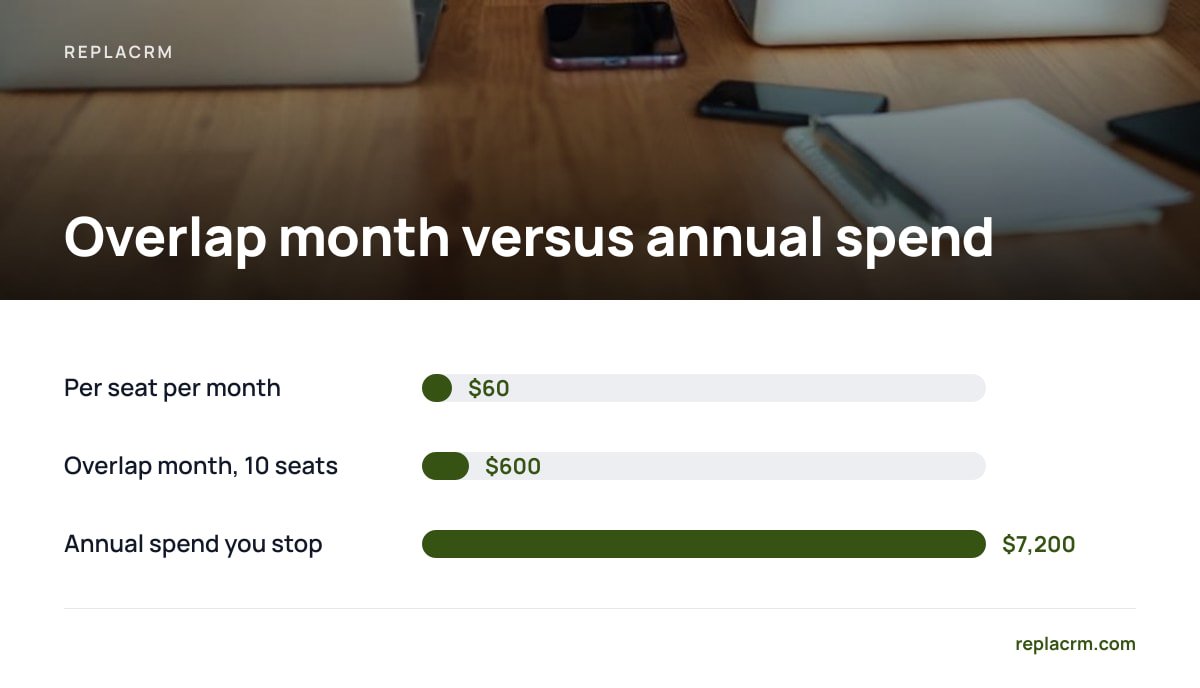
    Plan to pay for both systems for one billing period. Suppose you have 10 seats at $60 per seat per month (an example, not a quote). The overlap month costs $600. That is cheap insurance against finding a missing field after you have canceled, and the annual figure you stop paying once the move is done is $7,200. A line-by-line look at add-on charges shows how that annual figure often grows beyond the seat price.

    Check what the built-in export gives you. Many hosted CRMs export one object at a time, cap file sizes, or leave out attachments and call recordings. Open each file and confirm it has the columns you expect. Look for a notes file separate from the contacts file, because notes are the most commonly missed export.

    Overlap month versus annual spend: Per seat per month $60; Overlap month, 10 seats $600; Annual spend you stop $7,200

    What To Move, What To Clean, and What To Leave Behind

    Moving everything is usually the wrong call. Eight years of closed-lost deals and auto-logged email opens will slow your search and clutter every customer record. Decide record type by record type.

    Record type Move it? How
    Companies and contacts Yes, all Dedupe first, keep legacy ID
    Open deals Yes, all Map stages one-to-one before import
    Closed-won deals Yes, all They are your revenue history
    Closed-lost deals Last 24 months Older ones rarely get reopened
    Notes and call logs Yes Often a separate export file
    Auto-logged email opens and clicks Skip Low value, high volume
    Attachments and contracts Yes, selectively Download in bulk, re-link by legacy ID
    Unsubscribe and consent status Yes, first Legal exposure if lost
    Reports and dashboards Rebuild They do not export in a usable form

    The cutoff for closed-lost deals is a judgment call. Twenty-four months is a good default because most small-business sales cycles end well inside that window. If your cycles run longer, extend it. For a sense of which fields a small team uses day to day, this feature rundown helps you decide what to map and what to drop.

    Clean and Map the Data: How To Move Data From One Database to Another

    You may search for this as "migrate data from one database to another," and the answer depends on your access. With a subscription CRM you do not have database access. You get CSV exports and an API. Copying a database directly only works when you control both ends and the schemas are close. Otherwise the process is always the same: export, transform, stage, load, reconcile.

    Three formatting rules prevent most failed imports:

    • Quote your text fields. The CSV format, described in RFC 4180, requires fields containing commas, quotes or line breaks to be wrapped in double quotes, with inner quotes doubled. Multi-line notes are the usual offender.
    • Normalize phone numbers. The ITU's E.164 standard caps international numbers at 15 digits. Store them as +14155552671 and calling and texting will work without guesswork.
    • Use one date format. ISO 8601 writes dates as 2025-03-14, which no importer misreads as day-first or month-first.

    A single unquoted comma in a notes field can shift every column after it by one, and some importers still report success.

    Add one column of your own: the old system's record ID. Store it in a custom field called legacy_id on every imported record. It lets you re-link attachments, rerun a failed batch without duplicating anything, and answer "where did this record come from?" a year from now.

    Deduplicate before importing. Merging two contacts in a new system means deciding whose notes win, with no undo. In a spreadsheet it takes one sort on email address.

    Import Order, Dry Runs and the Cutover Weekend

    Two coworkers at a desk discussing a plan, with a closed laptop between them.

    Import parents before children: companies, then contacts, deals, notes, tasks and activities. A deal loaded before its company has nothing to attach to, and many importers will either reject it or create an orphan.

    If you run several brands, import each brand's customers as its own batch into its own brand space. This keeps customers separate from the first day. A person who buys from two of your brands becomes two records, one per brand, which is how a multi-brand setup is meant to work.

    Do the dry run on a copy. Load your complete export, then spot-check 20 records by hand against the old system: the contact, its company, the deal amounts, the last three notes and the owner. Fix the mapping, wipe the copy and run it again until the 20 match.

    Import a full export during the week, then on cutover weekend load only records modified since that export. The delta is a few percent of the data and takes minutes.

    Pro Tip: Map record owners by email address, not by display name. Names change, get abbreviated and collide, and an importer that cannot match "Sam R." to a user will silently assign the record to the admin. Create every user in the new system first, with the same email they used in the old one, and every deal will land with the right person.

    After the final import, reconcile counts: contacts in the export versus contacts in the new system, open deal value in each, and number of notes. Matching totals tell you more than any single spot check.

    Email, Calls and Chats: Where a Microsoft 365 Migration Tool Fits

    People often ask which Microsoft 365 migration tool to use. For a CRM move, you probably do not need one. Microsoft's mailbox migration tooling in the Exchange admin center moves mailboxes between tenants or from other mail servers. That is a different job from moving customer history.

    Leave the mailboxes where they are and connect them to the new CRM over IMAP or your mail provider's standard connection. Then import the history you want attached to customer records: past emails exported from the old CRM, plus call logs and chat transcripts. If you must move mailboxes too, use the vendor's own tool, and do it as a separate project on a separate weekend.

    A unified inbox changes what you migrate. If your new CRM puts chats, tickets, form submissions, email and calls on one customer record, import those histories keyed by the customer's email or phone number, so the timeline is complete from day one. If you use the ReplaChat and ReplaTicket integrations, past conversations and tickets can attach to the same record.

    Choosing the Target and Setting It Up: Similar CRMs and Setup Order

    Readers also ask which CRM is similar to the one they are leaving. Similarity of data model matters more than similarity of interface. Any CRM that has companies, contacts, deals with stages, and activities will take your export with small mapping changes. A system missing one of those four, such as one with no company object, forces you to flatten your data, and flattened data does not unflatten.

    To set up a CRM system before the import, follow this order. It takes a day or two for a small business, and the order saves rework:

    1. Install on your server and confirm backups work before any customer data arrives.
    2. Create brands if you run more than one business.
    3. Create users with the same emails as in the old system.
    4. Build pipeline stages to match your old stage names exactly. Rename them later.
    5. Add custom fields, including legacy_id.
    6. Connect email, phone and chat channels.
    7. Run the dry-run import.

    If customers self-book appointments, export upcoming appointments and import them as scheduled events. Reminder logic then needs rebuilding, and this working plan for appointment reminders walks through it.

    Import your unsubscribe list first, as a flag on each contact. If you load contacts without it, your first campaign in the new system will email people who already opted out. In the US, the FTC's CAN-SPAM compliance guide says you must honor an opt-out request within 10 business days, and a migration is no excuse for missing one.

    Also carry over any consent records: where and when a person agreed, and to what. If your old CRM stored these as a custom field or inside notes, find them before the export, not after.

    Finish by closing out the old copy. Under the EU's GDPR, Article 28(3)(g) says a processor must, at your choice, delete or return all personal data when the service ends, unless law requires storage. Whether or not GDPR applies to you, send the vendor a written request to delete your data after your verification period, and keep their confirmation. Hold a read-only copy of your final export for 12 months in case a question comes up.

    Get a Self-Hosted CRM You Can Import Into on Day One

    Replacrm is a self-hosted CRM sold as a one-time license from $1,495. It has no per-user fees and no cap on brands, users or customers, so a 30-person team costs the same as a 3-person one. It builds each customer's record from chats, tickets, form submissions, email and calls, and keeps each brand's customers separate under one login. That fits the plan above: import each brand as its own batch, keep the sales board stages aligned with your old pipeline, and attach history to a single record.

    Check one limit first. You run the server, so you also own backups, updates and uptime, and you should test a restore before you import anything. Confirm which file formats and record types the current version imports on the spec sheet, and run your dry run against a copy before you commit. If your old export has a data type the importer cannot take, you want to learn that before you cancel.

    Frequently Asked Questions

    How long does it take to migrate CRM data to a self-hosted CRM?

    For a small business with under 50,000 records, plan for one to two weeks of part-time work. Most of that time goes into cleaning duplicates and mapping fields. The imports themselves usually take minutes to a few hours.

    Can I move everything, including emails and attachments?

    Usually yes, but not in one file. Contacts, companies and deals export as CSV, while attachments need a bulk download and email history often needs a separate export. Check each file for completeness before you cancel the old subscription.

    What is the best Microsoft 365 migration tool for a CRM move?

    You probably do not need one. Microsoft's built-in mailbox migration tools in the Exchange admin center move mailboxes, which is a separate job from moving CRM records. For a CRM migration, connect your existing mailboxes to the new system and import the history you want attached to customers.

    How do I avoid duplicate records during import?

    Deduplicate in a spreadsheet by email address and phone number before you import, and store the old record ID in a legacy ID field. If a batch fails, the legacy ID lets you rerun it without creating copies.

    Should I cancel my old CRM right after the import?

    No. Keep it for one overlap period, reconcile record counts and open deal value, and let your team work in the new system for a few weeks. Then cancel, request deletion of your data in writing, and keep a read-only copy of the final export.

    Sources

  • How to Vet CRM Vendor Stability Before You Switch

    How to Vet CRM Vendor Stability Before You Switch

    To vet CRM vendor stability, check four things: whether the company can pay its bills, how its prices have moved over the last three years, whether you can export every record in a usable format, and what your contract says if it is acquired. Company size is the weakest signal on that list. The strongest is how cheaply you can leave if the vendor changes terms or stops shipping.

    TL;DR:

    • Vendor stability is the gap between what you pay today and what leaving would cost, so test the exit before you read a single press release.
    • Public companies and UK limited companies file accounts you can read for free. Private vendors can be asked for financial statements under NDA, and a refusal tells you something.
    • Two list-price increases in 24 months with no new features attached is the cheapest distress signal you can check.
    • Export one customer with 50 or more interactions during the trial. Missing notes, calls or attachments are your real switching cost.
    • Score vendors on a weighted sheet. In our weighting, data export carries 30 of 100 points and company size carries none.

    Table of Contents

    How to Vet CRM Vendor Stability by Measuring What Leaving Would Cost

    Vendor stability is the gap between what you pay today and what leaving would cost if the vendor changes terms, gets acquired or stops shipping. A vendor with 50,000 customers can still be bought by a company that retires the product and doubles the price. So vet in this order: exit cost first, finances second, behavior third.

    Whether the CRM should be open source is a separate decision, covered in what to compare in an open source alternative. This article assumes you already have a shortlist and want to know which names will still be shipping in five years.

    You can finish the whole process in an afternoon. Most of it is reading documents the vendor is already required, or willing, to hand over.

    Read the Financial Signals: Filings, Funding Rounds and Profit

    Start with who the vendor is, because that decides where the evidence lives.

    Vendor type Where to look Red flag
    Public company Annual (10-K) and quarterly (10-Q) reports on SEC EDGAR Auditor "going concern" language, falling customer counts, repeated restructurings
    UK private limited company Filed accounts at Companies House Late filings, net liabilities, a sudden change of directors
    Venture-backed private company Funding announcements, headcount trend, leadership changes No new round in 24 months, layoffs, departed founders
    Founder-owned, self-funded Ask directly: years trading, customer count, profitable or not Refusal to say whether it is profitable

    If the vendor is public, open the latest 10-K and read two parts: the risk factors and the auditor's report. US auditors must flag substantial doubt about a company's ability to continue as a going concern, and that sentence is rare enough that finding it settles the question. SEC EDGAR is free and searchable by company name.

    For private vendors, ask for a recent financial statement under NDA, or at least a plain answer to "are you profitable?" A profitable 15-person company with no outside investors often outlasts a funded one burning cash. A funding headline tells you the vendor had money last quarter. Profit tells you it can keep going without a next round.

    Pro Tip: Check the vendor's job listings, not its press page. A company that has posted no engineering roles for six months while still advertising sales roles is spending on selling the product rather than building it. That pattern often shows up a year before a sale or a wind-down.

    Pull the Pricing History, Because Distress Shows Up on Your Invoice First

    A vendor under financial pressure usually raises prices before it does anything visible. Ask for list prices for the last three years, or find them on archived versions of the pricing page. Then read the changes against what you actually received.

    Two list-price increases in 24 months with no new features attached is the cheapest distress signal you can check.

    Also look at how the vendor charges. Per-seat pricing with frequent tier changes, add-on packaging and "contact sales" walls at the upper tiers all let a vendor raise your bill without announcing a price increase. Our breakdown of what add-ons cost line by line shows how a headline price can end up at several times the quoted figure. If you are comparing a cheaper option, the real math for small businesses walks through a five-year total.

    Ask the sales rep one question in writing: "What is the maximum renewal increase in your standard contract?" A vendor confident in its own stability will cap it. A vendor that will not put a number down is telling you what its renewals look like.

    Test the Data Exit Before You Sign

    Hands connecting a cable to an external hard drive next to a closed laptop.

    Most buyers skip this check, and it matters most. You will leave this vendor someday, stable or not, and the question is whether you can do it on your timeline.

    Run a real export during the trial

    Pick one customer with 50 or more interactions and export everything. Then check the file for:

    • Notes and activity history. Many exports include contacts and deals but drop the timeline, which is where the value lives.
    • Call logs and recordings. These are often stored separately and need a different request.
    • Attachments and signed documents. Look for working links or actual files, not references to the vendor's servers.
    • Relationship IDs. If the file does not show which note belongs to which contact, you have a pile of text, not a migration path.
    • Custom fields. Confirm they come out with their names, not as "field_17".

    Before you sign, export one customer with 50 or more interactions and confirm that every note, call and attachment is in the file.

    The EU Data Act has applied since September 12, 2025 and includes rules for switching between data processing services, including a maximum notice period of two months. That is a floor and does not guarantee a clean export. It also only helps if your business falls under EU rules. Outside the EU, your contract is your only protection.

    Look for Operational Evidence: Security Reports, Release Cadence and Support

    Financial health says the vendor can pay for servers. Operational evidence says it is still running them well.

    SOC 2 report. The AICPA's SOC 2 is an auditor's report on controls for security, availability, confidentiality and related criteria. Ask for a Type II report, which covers a period of time, rather than a Type I, which is a snapshot on one date. A SOC 2 report says nothing about solvency, but a vendor that lets its audit lapse is usually cutting costs somewhere.

    ISO/IEC 27001. ISO 27001 is an information security management standard. ISO does not issue certificates itself. Accredited certification bodies do, so ask who certified the vendor and when.

    Release cadence. Read the public changelog. If the last meaningful release was more than six months ago, ask why.

    Status page history. Look at the last 12 months of incidents. How fast they were resolved and whether the vendor explained itself matter more than how many there were.

    Support response. Open a real ticket during the trial and time the reply. Response time in week one is the best it will ever be.

    Contract Clauses That Protect You if the Vendor Is Sold or Fails

    Everything above lowers the odds of a bad outcome. These clauses limit the damage if it happens anyway.

    • Change-of-control termination. You can leave without penalty within 90 days of the vendor being acquired.
    • Renewal cap. A stated maximum percentage increase per renewal, in writing.
    • Data return window. The vendor must provide a full export in a documented format for at least 30 days after termination, at no extra charge.
    • Notice of sunsetting. A minimum notice period (we would ask for 12 months) before the product is discontinued.
    • Source or software escrow. Relevant mainly for self-hosted or on-premises products. A third party holds the code and releases it if the vendor goes under.

    Be realistic about what you will win. A small business buying 5 seats will not get custom terms from a large vendor, so the export test matters even more, because the contract will not rescue you. Small and mid-sized vendors negotiate far more often than people expect, and a short addendum is cheap for them.

    A Scorecard You Can Run in One Afternoon

    Weights are our own, built around exit cost. Adjust them if your situation differs, but write the numbers down before you see the vendors' responses, so a polished demo does not move them.

    Factor Weight A pass looks like
    Data export completeness 30 Full history of a test customer exports with relationships intact
    Pricing history and renewal terms 20 No more than one increase in 24 months, capped renewals in writing
    Financial transparency 20 Filed accounts, or a statement of profitability shared under NDA
    Contract protections 15 Change-of-control exit and data return window included
    Security attestations 10 Current SOC 2 Type II or ISO 27001 certificate
    Release and support cadence 5 Changelog active in the last 90 days, ticket answered within a business day

    Score each vendor out of 100. Below 60, keep looking. Between 60 and 80, negotiate the missing clauses before signing. Above 80, you have found a vendor you can leave if you have to.

    Vendor scorecard weights out of 100: Data export completeness 30; Pricing history and renewal terms 20; Financial transparency 20; Contract protections 15; Security attestations 10; Release and support cadence 5

    When the Obvious Answer Is Wrong: Big Vendors, Small Vendors and Ownership

    The common advice is to pick the biggest vendor because size means survival. We disagree. A large vendor is less likely to disappear and more likely to be reorganized, bundled, repriced or folded into a platform you did not ask for. If a small vendor goes bankrupt, your business survives only if your data exits cleanly. If a large one raises prices, it survives only if you can absorb the hike.

    Our pick, in order: a profitable vendor of any size with a tested export, then a large vendor with capped renewals, then a venture-funded vendor with neither. Profit and portability beat brand recognition.

    The strongest form of stability is to stop depending on the vendor's survival. Software you license once and run on your own server keeps working if the vendor goes quiet. The cost is that you own the server, the backups and the updates. For owners running several brands, we think that trade is usually worth it, and a self-hosted option you can run yourself is where we would start.

    Own Your CRM Instead of Betting on a Vendor's Next Five Years

    Replacrm is built for the exit problem this article describes. It is a self-hosted CRM sold as a one-time license from $1,495. You run it on your own server, with no per-seat fees and unlimited users, brands and customers. Chats, tickets, forms, email and calls land on one customer record, and each brand's customers stay separate under a single login. There is no renewal for a vendor to reprice, and your data sits in a database you control.

    Self-hosting has a limit: responsibility moves to you, so you need a server, a backup routine and someone to apply updates. A license also does not remove vendor risk entirely, because you still depend on us for future releases and support. Ask for our data schema and export documentation, and run the same test on us that we recommend for everyone else.

    Frequently Asked Questions

    How long does it take to vet a CRM vendor properly?

    Plan on one afternoon for the document checks (filings, pricing history, security reports) plus the length of the trial for the export and support tests. The export test takes about an hour once you have a trial account with real data in it.

    Is a big CRM vendor always safer than a small one?

    No. Large vendors rarely fail, but they do get acquired, repriced and restructured, and any of those can hurt you as much as a small vendor closing. A small, profitable vendor with a clean export and clear contract terms can be the lower-risk choice.

    What is the clearest red flag that a CRM vendor is in financial trouble?

    For public companies, auditor going-concern language in the 10-K is the clearest. For private vendors, repeated price increases without new features, layoffs and a vendor refusing to say whether it is profitable are the signals worth acting on.

    Should I ask for a SOC 2 report from a CRM vendor?

    Yes, ask for a Type II report, which covers a period of operation rather than one date. It shows the vendor's security controls were audited, but it does not tell you whether the vendor is financially healthy, so use it alongside the other checks.

    What should I do if my current CRM vendor is acquired?

    Read the change-of-control clause in your contract and note any termination window. Run an export immediately so you have a recent copy, and ask the new owner in writing about pricing, product roadmap and support commitments before your next renewal.

    Sources

  • CRM Features Small Sales Teams Need (and the Ones You Don’t)

    CRM Features Small Sales Teams Need (and the Ones You Don’t)

    The CRM features small sales teams need are five: one record per customer, a deal board, follow-up tasks, a shared inbox, and one weekly report. Teams under ten people use those daily. Forecasting modules, lead scoring, workflow builders and custom objects are what you tend to pay for and never open. The test: if nobody has touched a feature in 90 days, you are renting it.

    TL;DR:

    • Five features do almost all the work for a small team: a single customer record, a deal board, follow-up tasks, a shared inbox and one weekly report.
    • Lead scoring, forecasting, sequence builders and custom objects pay off at volumes most small teams never reach.
    • Booking, e-signing and calling look optional but remove the most manual steps between "interested" and "paid".
    • Per-seat pricing turns every unused feature into a recurring charge. At a hypothetical $50 per user per month, eight users cost $14,400 over three years.
    • Run a 30-minute audit: list every feature you pay for, mark who used it in the last 90 days, and cut or replace the rest.

    Table of Contents

    CRM Features Small Sales Teams Need Start With What the Acronym Covers

    CRM stands for customer relationship management. A CRM is a database of the people and companies you sell to, plus the history of every conversation, deal and task attached to them. When a lead writes in on Tuesday, whoever picks it up on Thursday knows what was already said.

    Everything past that is an add-on, and add-ons are where the bill grows. This article asks which features small teams use and which they pay for and ignore. If you are still deciding between hosted and run-it-yourself software, our guide to what to compare in an open source alternative covers that choice. Here we look only at features.

    The Five Features Small Teams Open Every Day

    Two coworkers at a wall of colored sticky notes arranged in columns, one moving a note to another column.

    A team of two to ten people lives in five screens. If a CRM does these well, it is good enough. If it does them badly, extra modules will not fix it.

    • One record per customer. Every email, chat, ticket, form submission and call sits on the same page. Without this, reps ask each other "did anyone reply to her?" in a group chat.
    • A deal board. A column view with five to seven stages, from "new" to "won" or "lost". With more stages than that, reps stop moving cards.
    • Follow-up tasks with due dates. The CRM should tell each rep who to contact today. This is where revenue is won or lost, because speed matters.
    • A shared inbox. Anyone on the team can see and answer the thread, and two people won't reply to the same lead with different prices.
    • One weekly report. Open deals by stage, deals won this month, and leads by source. If you need a data analyst to read it, you bought the wrong report.

    The evidence on follow-up speed is old but still the clearest we have. A Harvard Business Review study, The Short Life of Online Sales Leads, looked at how fast companies responded to web inquiries and found a steep drop-off in results after the first hour.

    Firms that contacted a lead within an hour were nearly seven times as likely to qualify it as firms that waited even one hour longer.

    A task list and a shared inbox deliver that speed. A scoring algorithm does not.

    Features You Pay For and Rarely Open

    Most CRM pricing tiers are built around features that matter to a 50-person sales org. A five-person team on the same tier subsidizes them. Here is how the common ones look from the small-team side.

    Feature Who actually needs it Small team verdict
    Lead scoring Teams with hundreds of new leads a month Skip. With 30 leads a month, your own judgment beats a model with too little data.
    Sales forecasting Managers with quotas across many reps Skip. A sum of open deal values by stage does the job.
    Visual workflow builder Ops teams with complex routing Use two or three simple rules, not a builder.
    Email sequences Outbound teams sending to cold lists Useful only if you do cold outreach. Many inbound-driven teams do not.
    Custom objects and fields Businesses with unusual data models Add five or six custom fields. Beyond that you are building a database.
    Territory management Reps split by region or account size Skip under 10 reps.
    Marketing automation suite Dedicated marketing staff Often overbought. Forms plus a tag is enough to start.
    Advanced dashboards Executives who read them One saved report beats twelve unread dashboards.

    Some of these features do pay off later. A team that grows to 15 reps with quotas will want forecasting. The mistake is paying for that future now, per seat, every month, while the five core features go underused because nobody configured them well.

    Two Features That Look Optional and Are Not: Booking and E-Signing

    Most feature checklists treat self-booking and e-signing as extras. For a small team selling services, they remove the slowest steps between "interested" and "paid".

    Customer self-booking. A booking link replaces three or four emails of "does Thursday work?" It also feeds the CRM automatically, so the appointment lands on the customer record. Pair it with reminders and you cut no-shows. We lay out a working setup in automated appointment reminders in a CRM.

    E-signing. If a quote or booking confirmation needs a signature, a CRM that handles it keeps the signed copy on the same record. The legal footing is better than most owners assume. The UNCITRAL Model Law on Electronic Signatures set out the principle that a reliable electronic signature can stand in for a handwritten one, and many national laws follow it. Reliability still depends on how you collect the signature, so read our e-signature compliance checklist and guide to binding booking confirmations before you send your first one.

    Calling and texting. Useful when your leads answer phones, with a catch. In the United States, the FCC explains that rules under the Telephone Consumer Protection Act generally require consent before automated marketing texts. A CRM that logs where and when consent was given is worth more than one that only sends messages.

    How Sales and Marketing Use One CRM Without Duplicating Work

    A CRM is a shared source of truth. Marketing brings in leads and sales closes them, and each needs to see what the other did. In a small business, one person often does both jobs, which simplifies the setup but keeps it necessary.

    • A source field on every contact. Record where each lead came from: a form, a chat, a referral, a call. Marketing learns which channels produce paying customers, and sales knows what the lead already read.
    • A written handoff rule. Decide what makes a lead ready for sales. "Asked for a quote or booked a call" is a better rule than a score, because everyone can check it.
    • Closed-loop reporting. When a deal is won or lost, the source stays attached. Marketing then counts revenue by channel, not just form fills.
    • Shared opt-outs. If a customer unsubscribes from marketing email, sales must see that on the record, as one flag visible to everyone.

    If you run several brands, keep customer lists separate by brand. A customer of your plumbing business should not appear in your cleaning company's mailing list. The European Commission's data protection pages explain that organizations deciding how personal data is used carry obligations under EU rules. If you operate in that market, separation by brand is easier to defend than a shared pile of contacts.

    The 3-3-3 Rule and Top 5 Sales Strategies, Mapped to CRM Fields

    What is the 3-3-3 rule in sales? There is no single standard version. One common version is about first impressions: three seconds to grab attention, three feet of personal space, three minutes to make your case. A second is a prospecting cadence: three touches, over three days, on three channels. A CRM can enforce the second, with a task template that drops three follow-ups onto a new lead.

    What are the top 5 sales strategies? Different books rank them differently. These five come up most, with the CRM support each one needs.

    • Consultative selling. You ask questions before pitching. You need a notes field and a place for the customer's stated problem.
    • Inbound selling. You respond to people who contacted you. You need a unified inbox and fast task alerts.
    • Referral selling. Happy customers send you new ones. You need a "referred by" field linking two records.
    • Social selling. You build relationships on professional networks. You need somewhere to log those touches, even a simple note.
    • Account-based selling. You focus on a short list of target companies. You need company-level records with several contacts per company.

    For a small team, we would pick inbound response speed and referrals. They cost the least and convert the best, and both need only the five core features.

    What Per-Seat Pricing Does to Unused Features

    Per-seat billing multiplies the cost of every feature you ignore. Here is a hypothetical, since your own invoice is the number that counts. Say your CRM tier costs $50 per user per month and you have eight users.

    $50 × 8 users × 36 months = $14,400 over three years, for five features you could run on a one-time license.

    Add a second tier because the first lacked one report, and the number moves again. We work through the full comparison in the real math on a cheaper alternative, and the self-run route is covered in what to pick in a self-hosted alternative.

    You might say you are paying for reliability and support, and that is fair. A hosted vendor runs the servers for you. The question is whether that service is worth a recurring charge that grows every time you hire.

    A 30-Minute Feature Audit Before You Renew or Buy

    You can find out what you actually use in half an hour.

    1. List every feature on your plan. Copy them from the pricing page, not from memory.
    2. Mark each one used or unused in the last 90 days. Ask each rep. Do not guess for them.
    3. Price the unused ones. Find the tier that adds them and note the difference per user per month.
    4. Check the five core features first. Are tasks being completed? Is the board current? Is the inbox shared? If not, fix those before buying anything.
    5. Decide: drop a tier, replace the tool, or keep it. Write down the reason so you can check it next renewal.

    Pro Tip: Have each rep sell for one full week using only the five core features, with everything else hidden or ignored. Keep a list of what they complain about. That list, not the vendor's feature grid, is your real requirements document. Most teams find two or three items on it, and they are rarely the expensive ones.

    Five steps of the CRM feature audit: 1. List every plan feature; 2. Mark used or unused; 3. Price the unused ones; 4. Check the five core features; 5. Decide and record why

    Get a Sales Board, Unified Inbox and Booking Without Per-Seat Fees

    Replacrm is built around the five features above. It pulls chats, support tickets, form submissions, email and calls onto a single customer record, and adds a sales board for deals, customer self-booking, e-signing, and calling and texting. If you run more than one brand, each brand's customers stay separate under one login. It also works with ReplaChat and ReplaTicket if you want chat and support in the same place.

    The license is a one-time payment from $1,495 for a CRM you run on your own server, with no per-user fees and unlimited brands, users and customers. Adding a rep does not change your bill. The caveat is the server: you or someone you hire has to host it, keep it updated and take backups. If nobody on your team can do that, a hosted CRM may fit better. Check the spec sheet against your own five-feature list before you buy.

    Frequently Asked Questions

    What does CRM stand for and what does it do?

    CRM stands for customer relationship management. It stores every contact, conversation, deal and task in one place, so anyone on your team can see the full history with a customer. For small teams, its core jobs are tracking deals, reminding reps to follow up, and keeping messages from different channels together.

    How do sales and marketing teams use a CRM to work together?

    They share one record per contact, with a source field showing where the lead came from. Marketing passes a lead to sales when it meets an agreed rule, such as requesting a quote. When the deal closes, the source stays attached, so marketing can see which channels produce revenue.

    What is the 3-3-3 rule in sales?

    It has no single official definition. One version means three seconds to grab attention, three feet of distance and three minutes to pitch. Another means three follow-up touches over three days across three channels, which a CRM can enforce with a task template.

    What are the top 5 sales strategies?

    Commonly cited ones are consultative, inbound, referral, social and account-based selling. For a small team, inbound response speed and referrals usually return the most for the least effort. Both depend on the same basics: a shared inbox, fast follow-up tasks and a field linking a customer to the person who referred them.

    Which CRM features can a small team safely skip?

    Lead scoring, forecasting, territory management and advanced workflow builders are the usual candidates under about ten reps. They need volume or headcount to be worth it. Check your own usage over 90 days before cutting anything.

    Sources

  • The True Cost of Salesforce Add-Ons, Line by Line

    The True Cost of Salesforce Add-Ons, Line by Line

    The true cost of Salesforce add-ons is roughly the same as your license bill, and sometimes more. Published list prices run from about $25 to $550 per user per month, but support plans, marketplace apps, extra storage and admin time are all priced separately. In the 10-user model below, add-ons and services add $20,400 a year to $21,000 in licenses. Budget for double the list price, then replace my assumptions with your own quotes.

    TL;DR:

    • Salesforce's published pricing starts around $25 per user per month and climbs to $550, and the edition with the features most teams need sits in the middle of that range.
    • The license is the visible part. Support plans, marketplace apps, extra storage, sandboxes and admin or consultant time are separate lines.
    • In a 10-user model with labeled assumptions, a $21,000 license bill becomes about $41,400 a year, nearly double.
    • Data storage is capped per org, roughly 10 GB plus a small per-user amount on common editions, and extra capacity is a paid add-on.
    • For a small team, the cheaper comparison is a flat one-time license you host yourself, which has no per-user meter for add-ons to attach to.

    Table of Contents

    What Salesforce Costs Before Add-Ons, and Why List Price Misleads

    The cost of Salesforce starts with a per-user, per-month license. Salesforce's own pricing page lists sales editions from roughly $25 per user per month at the entry level to $550 at the top. Plans in the middle sit around $100 to $175. Prices change, so confirm the current figure on that page before you build a budget.

    Annual billing is the norm for the published prices, and every seat counts, including the part-timer who logs in twice a month. Ten users on a $175 edition is $1,750 a month, or $21,000 a year, before anything else is added.

    The entry editions are cheap because they leave things out. Automation limits, reporting depth and customization push most teams up a tier, and each step up multiplies across every seat. If you are weighing flat-fee options against this model, the real math on a cheaper HubSpot alternative uses the same per-seat logic. For the broader question of which self-hosted or open-source route to take, see what to actually compare in an open source HubSpot alternative.

    The True Cost of Salesforce Add-Ons, by Category

    Hands stacking towers of coins next to a closed wallet on a wooden desk.

    Add-ons come in six forms, and a quote that shows only licenses leaves all of them out. Here is where the money goes.

    Add-on category How it is priced Why teams end up buying it
    Support plan Percentage of license spend Standard support is limited; faster response and admin help cost extra
    Marketplace apps Often per user per month E-signature, dialers, document tools and quoting are rarely built in
    Extra data and file storage Sold in blocks above the included allowance Email, attachments and imported history fill the allowance
    Sandboxes Included in small numbers by edition, extra copies cost more You need a safe place to test changes
    Admin or consultant time Hourly or retainer Someone has to build and maintain flows, fields and reports
    Marketing, AI and data products Separate subscriptions Sold as separate products, not as part of the CRM license

    Here is what to keep in mind for each.

    Support plans

    Salesforce prices its paid support tiers as a share of your license spend, so the plan grows every time you add a seat or move up an edition. Ask for the current percentage in writing. I use 20% in the model below as a placeholder, not a quote.

    Marketplace apps

    The AppExchange is a large catalog, and most paid apps charge per user. A $30 app on 10 seats is $3,600 a year. Two of them is $7,200. This is where the add-on bill grows fastest, because each app fills one gap and none of them talks to the others for free.

    Admin and consultant time

    Most quotes hide this line because Salesforce does not charge for it. It is still a cost of Salesforce. A small team without an admin pays someone else by the hour.

    A 10-User Example: From $21,000 to $41,400 a Year

    The table below is a model, not a quote. Every assumption is labeled so you can swap in your own numbers.

    Line item Assumption Annual cost
    10 licenses $175 per user per month $21,000
    Paid support plan 20% of license spend $4,200
    Two marketplace apps $30 per user per month each $7,200
    Admin or consultant 5 hours a month at $150 $9,000
    Total $41,400

    In this model, add-ons and services cost $20,400 a year on top of $21,000 in licenses, so the real bill is 1.97 times the list price.

    Over three years that is $124,200 for a ten-person team. Hire two more people and every per-user line rises, including the support plan, which is a percentage. The model also leaves out implementation, training and any data migration, so treat $41,400 as a floor.

    A one-time license from $1,495 plus a server at an assumed $30 a month comes to $2,575 over three years. The two products do not do identical things, which I cover near the end, but the gap is large enough that the comparison is worth running with your own numbers.

    Where a $41,400 Salesforce bill comes from: 10 licenses $21,000; Paid support plan $4,200; Two marketplace apps $7,200; Admin or consultant $9,000

    Data Storage Limits in Salesforce, and What Happens When You Hit Them

    Salesforce caps storage per org, not only per user. According to Salesforce's help documentation, common editions such as Enterprise include 10 GB of data storage plus 20 MB per user license, with file storage counted separately. Check your edition's exact allowance, because it varies.

    For 10 users that is about 10.2 GB of data storage. Salesforce counts most records as 2 KB each, so 10.2 GB holds roughly 5 million records. For a small business with a clean contact list, that is plenty.

    Storage fills up faster than record counts suggest, for these reasons.

    • Attachments and email. Files and synced email count against file storage, and a few years of PDF quotes and signed contracts add up.
    • Duplicate records. Imports from forms and spreadsheets create duplicates that count in full.
    • Backups and sandboxes. Full-copy sandboxes need matching capacity, which pushes you toward a bigger plan.

    When you pass the allowance, you buy more in blocks. The price per gigabyte is far above commodity cloud storage, so ask for the current rate before you plan a big import. On a self-hosted CRM, storage is whatever your server disk holds, and expanding it costs a few dollars a month.

    How Much a CRM Costs Per Month, by Pricing Model

    A CRM costs anywhere from $0 to $550 per user per month, depending on the model. For most small teams the realistic range is $25 to $175 per user, which is $250 to $1,750 a month for ten people.

    Pricing model Monthly cost for 10 users What grows the bill
    Entry per-seat plan About $250 Hitting feature or automation limits
    Mid-tier per-seat plan About $1,000 to $1,750 Add-ons, support percentage, headcount
    One-time self-hosted license About $42 for $1,495 spread over 36 months, plus hosting Server upgrades

    The per-seat monthly number is always the floor, since add-ons sit on top of it. The one-time license cost does not scale with headcount. Add 10 more people and the second row doubles while the third stays flat. If you run more than one brand, the gap widens, because per-seat tools often want a separate org or separate licenses per business. For the self-hosted side of this, see what to pick in a HubSpot alternative you can host yourself.

    Who Is Salesforce's Biggest Competitor? It Depends on Your Size

    Salesforce is the largest CRM vendor by revenue, so its direct rivals are other large per-seat suites. I will not rank them here, because for a small business the ranking matters little. A rival with the same per-user meter and the same add-on catalog gives you the same bill with a different logo.

    For a business with fewer than 25 people, the competitor that matters is a different pricing model: a flat license you own and run on your own server. The arithmetic in this article changes there, since no per-seat line exists for an app or a support percentage to multiply.

    Pricing a Salesforce Quote Before You Sign

    Ask for these items in writing, and compare them to the model above.

    • Three-year total. Request years one, two and three, including the renewal uplift cap. A quote that shows only year one hides the figure that matters.
    • Support percentage. Get the exact rate and what it is applied to.
    • Per-app seat counts. Ask whether each marketplace app can be licensed for a subset of users.
    • Storage allowance. Confirm data and file storage for your edition and the price of extra blocks.
    • Sandbox count. Find out how many are included and what an extra one costs.

    Pro Tip: Ask the vendor to quote every per-user add-on at your headcount in year three, not today. A 10-person team that plans to hire 5 people pays for 15 seats on each app, and the support percentage rises with them. Teams that price at today's headcount routinely under-budget by a third in year three.

    Salesforce is still the right pick in some cases. If you need deep integrations with a large enterprise stack, a mature partner ecosystem or specialized industry features, the add-on cost buys something real. If your needs are contacts, deals, support threads, bookings and signatures, you are paying for capability you will not use.

    Get a CRM With No Add-On Meter, and Your Data on Your Own Server

    ReplaCRM removes the meter. It is a self-hosted CRM sold as a one-time license from $1,495, with no per-user fees and unlimited brands, users and customers. Chats, support tickets, form submissions, email and calls land on one customer record. It also includes a sales board, customer self-booking, e-signing and calling and texting, which become separate paid apps elsewhere. Each brand's customers stay separate under one login, and ReplaChat and ReplaTicket integrate directly.

    The caveat is that you run the server. You pay for hosting and you own the backups, so read our guide on how to back up a self-hosted CRM database and prove it restores before you commit. ReplaCRM also does not match the enterprise ecosystem of large per-seat suites, so check the spec sheet against your must-have list.

    Frequently Asked Questions

    What is the cost of Salesforce?

    Salesforce's published sales editions run from about $25 to $550 per user per month, billed annually. Most small teams land in the $100 to $175 range, and add-ons such as support plans, apps and admin time can roughly double the total. Confirm current prices on Salesforce's pricing page.

    What is the data storage limit in Salesforce?

    Limits depend on edition. Enterprise, for example, includes about 10 GB of data storage plus 20 MB per user license, with file storage counted separately. Extra storage is a paid add-on, so check your edition's allowance before a large import.

    Who is Salesforce's biggest competitor?

    Salesforce is the largest CRM vendor by revenue, so its competitors are other big per-seat suites. For a business under 25 people, the practical alternative is a different pricing model, such as a one-time license you host yourself, because it has no per-user meter for add-ons to attach to.

    How much is a CRM per month?

    Per-seat CRMs commonly cost $25 to $175 per user per month, which is $250 to $1,750 for a ten-person team. A one-time self-hosted license from $1,495 works out to about $42 a month over three years for the whole company, plus your hosting cost.

    Which Salesforce add-ons are hardest to predict?

    Marketplace apps and consultant time. Apps usually charge per user, so costs rise with every hire, and consultant hours depend on how much you customize. Ask for the three-year total, not the year-one figure.

    Sources

  • Automated Appointment Reminder Setup in a CRM: A Working Plan

    Automated Appointment Reminder Setup in a CRM: A Working Plan

    An automated appointment reminder setup in a CRM needs three things: a booking with a confirmed time and time zone, rules that fire at fixed offsets before that time, and a message with a working reschedule link. Most setups skip the link. A reminder that can only remind gets ignored when the client has a conflict, while one that lets them move the slot saves the booking.

    TL;DR:

    • Send three reminders at most: an instant confirmation, a day-before text, and a short-notice text two hours out.
    • Put a one-tap reschedule link in every reminder. It recovers slots that a plain reminder would lose.
    • Get consent before the first text, and honor STOP immediately. In the US, the FCC enforces the TCPA.
    • Store times in UTC, show them in the client's time zone, and send within a daytime window.
    • Test with a real booking and watch the scheduler. If the server job stalls, reminders stop without any error.

    Table of Contents

    Automated Appointment Reminder Setup in a CRM: The Five Pieces You Need

    CRM stands for customer relationship management. Here it means one record per client that holds contact details, brand, history and bookings. Reminders work when five pieces line up on that record:

    • A booking with a confirmed start time and time zone. The reminder engine has nothing to count back from without both.
    • A contact method and consent. You need a mobile number or email on the record, plus a note of how the client agreed to be messaged.
    • Trigger rules. Each rule says "send this template X hours before start," and a good setup lets you skip a rule when the booking was made too late for it.
    • Templates per channel. An email can run long. A text should fit in one segment.
    • A reply path. Every message links to a page where the client can reschedule or cancel, and every text honors STOP.

    This article assumes bookings already land in your CRM. If you are still choosing how clients book, the comparison of self-hosted booking options covers that decision, and this one picks up after it.

    How Many Reminders, and When: A Cadence That Works

    Three reminders beat one, and they beat six. A Cochrane review of text message reminders for healthcare appointments found that reminders raise attendance compared with sending none, with a relative increase of about 14 percent. The review measures the gain from having a reminder, not from stacking them, so there is no evidence that a fourth message earns its place. Each extra message mostly teaches clients to ignore your number.

    This is the cadence I would pick for most service businesses:

    Reminder Timing Channel Job
    Confirmation Immediately after booking Email, plus text if consented Proof of booking, calendar file, reschedule link
    Early reminder 48 hours before Email Address, prep steps, forms to complete
    Day-before reminder 24 hours before Text Time, one-tap reschedule or cancel
    Short-notice reminder 2 hours before Text Arrival or join link, parking, who to call

    Two adjustments matter. If a client books less than 24 hours ahead, skip the day-before reminder and send only the confirmation and the 2-hour text. For appointments that need preparation, such as paperwork or a deposit, move the email to 72 hours so there is time to act on it.

    I would drop the 2-hour text only for appointments that clients can never run late to, which is rare. It is the cheapest message you send and the one most likely to catch someone who forgot.

    Four-step appointment reminder cadence: 1. Confirmation; 2. Early reminder; 3. Day-before reminder; 4. Short-notice reminder

    Email, Text, or Both: Matching the Channel to the Message

    Email carries detail and text carries urgency. Put anything the client may need to read twice, like directions or intake forms, in email. Put anything they need to act on today in a text.

    In the US, the Federal Communications Commission enforces the Telephone Consumer Protection Act, which requires consent before you send automated texts to a mobile number. Record where the number came from. A checkbox on your booking form, saved with a timestamp on the client record, is enough evidence to show later. The CTIA Messaging Principles and Best Practices that carriers follow expect an easy opt-out, and STOP is the standard keyword. When a client replies STOP, your CRM should flag the record at once and suppress every future text.

    US carriers also require business texting to be registered (the A2P 10DLC system). Unregistered traffic gets filtered or blocked, which looks exactly like "the reminders stopped working." Outside the US, rules differ by country, so check your local regulator before enabling texts.

    Keep texts inside one segment

    A standard SMS segment holds 160 characters, and a single emoji switches the message to Unicode encoding, which cuts each segment to 70 characters.

    That one emoji can triple your per-message cost and split your message into pieces that arrive out of order. Skip emoji in reminders.

    What the Message Should Say: A Template You Can Copy

    Every reminder needs five facts: who you are, what the appointment is, when it is, where or how to attend, and how to change it. Here is a day-before text that fits in one segment:

    Hi {first_name}, this is {brand} reminding you of your {service} tomorrow at {time} {tz}. Need to move it? {short_link} Reply STOP to opt out.

    And a matching 48-hour email subject and opening:

    • Subject. "Your {service} with {brand} is on {day}, {date}"
    • First line. "You're booked for {time} {tz} at {address}. Here is what to bring, and a link to reschedule if plans change."

    Three details make the difference:

    • Name the brand in the first few words. A text from an unknown number is deleted. A text that opens with a business the client recently contacted gets read.
    • Use the reschedule link as the call to action. "Reply C to confirm" feels tidy, but it only helps if you act on non-replies, for instance by offering the slot to a waitlist. Without that, a confirm step adds friction and gives you no new slots.
    • Include the time zone abbreviation whenever the client might be in a different zone than your office.

    Pro Tip: Schedule the day-before text for a send window, not an exact offset. A rule of "24 hours before" fires at 7 a.m. Sunday for an appointment at 7 a.m. Monday, a time when most people ignore their phones. Set the rule to send at 10 a.m. the previous business day, and for early Monday appointments send on Friday afternoon. You lose a few hours of lead time and gain a message that gets read.

    Time Zones, Quiet Hours and Other Ways Reminders Fail

    Most failed reminders are configuration errors, not delivery errors. These are the ones that cost real bookings:

    • Local time stored without a zone. Save every start time in UTC and render it in the client's zone in messages. The iCalendar standard, RFC 5545, exists largely to make this portable, and your calendar file should follow it.
    • Reminders at 3 a.m. A server in one zone sending "24 hours before" can wake a client in another. Add a quiet-hours rule: no sends before 8 a.m. or after 8 p.m. in the client's local time.
    • Reminders after rescheduling. When a client moves a booking, the old triggers must be canceled and new ones created. Test this specifically. A client who gets a reminder for a slot they already vacated stops trusting every message you send.
    • Cancellations that keep firing. A canceled booking should delete its pending reminders.
    • Double reminders. If a calendar app and your CRM both send alerts, clients get two messages and pick one to ignore. Choose one source of truth.

    What about iPhone users?

    Clients on iPhone receive your reminders as ordinary texts and emails, so they need no special setup. Attaching a calendar file to the confirmation email helps: tapping it adds the booking to their calendar, which then alerts them natively. Many calendar clients ignore alert instructions embedded in invites, so treat the file as a backup and keep your own reminders as the primary system.

    Multi-Brand Reminders: Each Business Speaks in Its Own Name

    A person's hand resting on a small server in an office closet, with network cables neatly plugged in.

    If you run more than one business from one CRM, reminders are where brand mixing shows up first. A client of your yoga studio should not get a text signed by your consulting firm, and a shared sending number makes that mistake easy.

    Set these per brand, not globally:

    • Sender name and number. Each brand texts from its own number and emails from its own domain.
    • Templates. Greeting, sign-off and reschedule page all carry the brand's name and styling.
    • Business hours and quiet hours. A mobile service brand and an office-based brand rarely share the same windows.
    • Client separation. A client who exists under two brands should get each brand's reminders only for that brand's bookings.

    If any booking needs a signed agreement or deposit terms before the visit, link the signing step from the confirmation email. The guide to e-signature on booking confirmations explains how to make that binding.

    Test It, Then Keep It Running

    Run one live test before you trust the setup. Book a real appointment for yourself 26 hours out, using a phone number and email that are not your admin account, and check these in order:

    1. The confirmation arrives within a minute, with a working calendar file.
    2. The reminder arrives at the expected local time, from the correct brand name and number.
    3. The reschedule link opens, moves the booking, and the old reminder disappears.
    4. A STOP reply suppresses the next text.

    Then consider what runs the reminders. On a self-hosted system, a scheduled job on your server checks for due reminders every minute or so. If that job stalls after an update or a reboot, nothing errors. Reminders simply stop, and you find out through no-shows. Add a daily check that counts reminders sent versus bookings due, and alert yourself when the numbers diverge. The same server needs a restorable copy of its data, so read the backup strategy for a self-hosted CRM before something forces you to.

    Get Appointment Reminders That Send Under Each Brand's Own Name

    Reminders fail when the booking, the contact record and the messaging live in different tools that have to be kept in sync. Replacrm is a self-hosted CRM that keeps bookings, customer self-booking, texting and email on one customer record, so a reminder pulls the name, brand and time from the same place the booking was made. Brands stay separated under one login, so each business sends in its own name. You pay once, from $1,495, and run it on your own server with no per-user fees, whether you have two staff or twenty.

    One limit to know: owning the software does not remove carrier requirements. Text sending still needs a messaging provider that charges per message and, in the US, registered business texting. Check the current reminder options and trigger settings in the Replacrm spec sheet before you plan your cadence around a specific feature.

    Frequently Asked Questions

    How far in advance should an automated appointment reminder go out?

    Send the main text reminder about 24 hours before, during daytime hours in the client's time zone. Add a short-notice text about 2 hours before and an email 48 hours before if the client needs to prepare. For bookings made less than 24 hours ahead, skip the day-before reminder.

    Do I need permission to text appointment reminders?

    In the US, yes. The Telephone Consumer Protection Act, enforced by the FCC, requires consent before automated texts, so record how and when each client agreed. Rules differ by country, and you should always honor STOP replies immediately.

    How many reminders are too many?

    More than three per appointment starts to hurt. Clients begin ignoring messages from your number, and the evidence for reminders measures the benefit of having one, not of repeating it. A confirmation, a day-before text and a 2-hour text cover most businesses.

    Should a reminder ask the client to reply to confirm?

    Only if you will act on the answer. Replies are useful when a no-reply lets you offer the slot to someone on a waitlist. Otherwise, a reschedule link is more useful because it recovers the booking instead of just reporting a problem.

    Why did my automated reminders stop sending?

    Common causes are a stalled scheduled job on your server, an unregistered or blocked sending number, or a booking that was rescheduled without its old triggers being replaced. Check the scheduler first, then your messaging provider's delivery logs. A daily count of reminders due versus sent catches this early.

    Sources

  • CRM E-Signature Compliance Checklist: 8 Checks Before You Send

    CRM E-Signature Compliance Checklist: 8 Checks Before You Send

    A CRM e-signature compliance checklist comes down to five proofs: the client intended to sign, agreed to sign electronically, was tied to the record, signed a document that has not changed since, and you can still produce all of it years later. Signature type matters less than most vendors imply. Under the US ESIGN Act and the EU's eIDAS regulation, a plain electronic signature is valid for most business contracts when that evidence exists.

    TL;DR:

    • Match the signature level to the contract. A simple electronic signature with a strong audit trail covers most small business agreements, and a qualified signature is rarely worth the friction.
    • Check the exclusion list first. Wills, family law documents, certain utility and foreclosure notices and a few other categories cannot be e-signed under the US ESIGN Act.
    • Capture intent, consent and identity. You need a clear sign action, a consent step where the law requires one, and a signing link tied to a verified address.
    • Demand a full audit trail. Store and export the signer name, timestamp, IP address, event history and a document hash.
    • Plan for year seven. A self-hosted CRM makes you the custodian, so test that signed PDFs and their audit records survive a restore.

    Table of Contents

    The CRM E-Signature Compliance Checklist at a Glance

    Run these eight checks before the first client signs anything. Each one maps to a rule you can name, which matters if a contract is ever challenged.

    # Check What to verify Rule it traces to
    1 Signature level The level matches the contract's risk eIDAS Article 25
    2 Excluded documents The contract type is allowed to be e-signed ESIGN Act Section 103
    3 Consumer consent Disclosure and consent captured where required ESIGN Act Section 101(c)
    4 Intent Client sees the full document and takes a deliberate sign action ESIGN Act, UETA
    5 Identity Signing link goes to a verified address, with a second factor for high-value deals eIDAS Article 26
    6 Audit trail Who, when, from where, and every step in between 21 CFR Part 11 (as a yardstick)
    7 Document integrity Any change after signing is detectable eIDAS Article 26
    8 Retention and restore Signed record can be reproduced accurately later ESIGN Act Section 101(d)

    The sections below take them in order. If your signed contracts follow a booked call, the booking and the signature should land on the same customer record, and our guide to a self-hosted booking tool covers that half.

    Pick the Signature Level First: Simple, Advanced or Qualified

    The eIDAS regulation defines three tiers of electronic signature in the EU. The US ESIGN Act is looser: it recognizes any electronic sound, symbol or process attached to a record and adopted with intent to sign. The UNCITRAL Model Law on Electronic Signatures, which many national laws draw on, takes the same technology-neutral approach.

    Level What it takes Legal effect Pick it when
    Simple A signature applied with intent, such as a typed or drawn name plus a click Cannot be denied effect solely because it is electronic Service agreements, quotes, proposals, NDAs, most B2B and B2C contracts
    Advanced Uniquely linked to the signer, identifies the signer, under the signer's sole control, and any later change to the data is detectable Same legal basis as simple, with stronger evidence Higher-value contracts and regulated customers
    Qualified Advanced, plus a qualified certificate and a qualified signature creation device Equivalent to a handwritten signature across the EU Contracts where a national law demands it

    Under eIDAS Article 25, only a qualified electronic signature automatically carries the same legal effect as a handwritten one. Every other level only has to avoid being rejected for being electronic.

    The obvious advice is to buy the highest level you can. We would not. A qualified signature forces the client through certificate issuance, and that friction costs you signed deals. For ordinary service contracts, pick a simple signature backed by the audit trail in check 6. Move up to advanced when the contract value or the counterparty justifies a second identity factor. Use qualified signatures only where a statute requires one.

    Check for Documents the Law Won't Let You E-Sign

    The ESIGN Act lists categories it does not cover. If your CRM sends a template from one of these categories, a valid-looking signature may still be worthless.

    US exclusions to check

    • Wills, codicils and testamentary trusts. These need wet-ink execution in nearly every state.
    • Family law documents. Adoption and divorce papers are excluded.
    • Court documents. Orders, notices and official court filings are excluded.
    • Default and foreclosure notices. The exclusion applies to notices on a primary residence.
    • Utility cancellation notices. Notices of cancellation or termination of utility services are excluded.
    • Insurance cancellations. Cancellation or termination of health or life insurance benefits is excluded.
    • Product recalls and hazardous materials documents. Notices of recall or material failure of a product that risks health or safety are excluded.

    State law adds its own quirks, and rules outside the US vary more. Real estate deeds, powers of attorney and some employment documents are the usual trouble spots. If your business signs any of them, ask a local lawyer once, then put the answer into a template rule in your CRM so staff cannot send the wrong document type for e-signing.

    Three separate things have to be shown, and they fail separately.

    Consent. Under ESIGN Section 101(c), when a law requires you to give a consumer information in writing, the consumer must first consent to receiving it electronically. They need a clear statement of their right to a paper copy and to withdraw consent, and the consent has to demonstrate they can open the electronic format. Many ordinary service contracts do not trigger this rule, but consumer finance, insurance and some leasing documents do. Check whether yours do. If they do, the consent step needs its own logged record, not a buried checkbox.

    Intent. The client must see the whole document before signing and take a deliberate action, such as clicking "Sign and agree" after a final review screen. A signature field that appears before the client has scrolled past the terms invites a challenge.

    Identity. Most CRM signing works by emailing a unique link, so control of the inbox is the identity check. That is acceptable for a $400 monthly retainer. For a $40,000 contract, add a one-time code by text message or a second contact channel. Each extra step lowers completion, so apply the second factor by contract value, not to every document.

    Pro Tip: Log the consent screen as its own event with its own timestamp, separate from the signature event. If a client later says they never agreed to sign electronically, a record showing consent at 14:02 and signature at 14:09 answers both questions at once. Most default audit trails merge the two.

    The Audit Trail Fields to Demand Before You Go Live

    The audit trail is the document you will hand over if a signature is disputed. Open a test record and confirm each of these is stored, readable and exportable.

    • Signer identity. Full name and the email address or phone number the link was sent to.
    • Event timeline. Sent, delivered, opened, consent given, signed and completed, each with its own timestamp.
    • Network data. The IP address and browser user agent at the moment of signing.
    • Document hash. A cryptographic hash (SHA-256 is the usual choice) of the final PDF.
    • Version reference. Which template version the client saw, so you can show terms did not change mid-flow.

    21 CFR Part 11 applies to FDA-regulated records, so most small businesses are not bound by it. Its signature rules still make a useful benchmark.

    Part 11 requires a signed record to show three things: the printed name of the signer, the date and time of signing, and the meaning of the signature, such as review, approval or responsibility.

    Most CRM signing screens never record that third item, the meaning of the signature. Adding a line such as "I have read and agree to these terms as the authorized representative of [Company]" fixes that at no cost.

    You also control the server clock when you self-host. Run NTP time sync and confirm the server reports UTC, because a timestamp from a drifting clock is easy to attack.

    Multi-Brand and Data Checks Inside a Self-Hosted CRM

    A hand plugging a network cable into a small server on a shelf in an office closet.

    If you run several brands from one CRM, each contract has a different legal counterparty. Check that the signing page, the PDF header and the audit trail all show the correct brand and legal entity. A client who signs a document branded "Harbor Fitness" when the contracting entity is "Harbor Wellness LLC" has a ready-made argument that they never agreed to your terms.

    Three further checks apply when the data sits on your own machine:

    • Brand separation. A signature record for one brand must not appear in another brand's customer view. Test by logging in as a user limited to a single brand.
    • Access control. Limit who can edit or delete signed records. Deletion rights on completed contracts should belong to an owner role only.
    • Secure access. If staff reach the CRM remotely, do it without publishing the login page to the internet. Our guide to remote access for a self-hosted CRM walks through the options.

    Keeping chats, tickets and email on the same record also helps in a dispute, because the client's questions before signing sit beside the signature. See how a unified customer inbox works.

    Retention, Backup and Restore: Evidence You Can Still Produce in Year Seven

    ESIGN Section 101(d) requires that a record you must retain stays accurately reproducible for later reference. On a rented platform, the vendor carries that burden. On a self-hosted CRM, you do.

    Retention periods vary by contract type and jurisdiction, so set yours with your accountant or lawyer, then configure it. Then check the mechanics:

    • Both halves backed up. The signed PDF and the database rows holding the audit trail must be in the same backup. A PDF with no trail is a weaker exhibit.
    • A restore, not just a backup. Restore to a scratch server and open a signed contract. How to back up a self-hosted CRM database and prove it restores gives a repeatable test, and the backup strategy for surviving a crash covers schedules and off-site copies.
    • Format survival. Keep signed contracts as standard PDF, which you can open without the CRM.

    Pro Tip: Write each signed PDF's SHA-256 hash to a log the CRM cannot edit, such as a weekly digest emailed to your own address. After a restore, recompute the hash and compare. If the numbers match, you can show nobody altered the file after signing, even though you control the server. A self-hosted setup is most open to that objection.

    Run a Test Signature Before You Send a Real One

    Spend fifteen minutes on a dry run with a colleague's personal email, not your own.

    1. Send a contract from the production template and watch what the signer sees. Is the whole document visible before the sign button?
    2. Sign it on a phone. Many clients will.
    3. Open the audit trail and tick off the fields listed above.
    4. Edit one character in the finished PDF and check that the integrity check fails.
    5. Restore last night's backup somewhere safe and open the same contract.

    If any step fails, fix it before a client finds the gap. It is cheaper to find each failure with a colleague than with a customer.

    Five-step test signature dry run: 1. Send from production template; 2. Sign on a phone; 3. Check the audit trail; 4. Edit the finished PDF; 5. Restore last night's backup

    Get E-Signing, Bookings and Contracts on One Record You Own

    The checklist above is mostly about keeping evidence in one place you control. Replacrm is a self-hosted CRM that puts e-signing, customer self-booking, chats, tickets, email and calls on a single customer record. Each of your brands stays separate under one login, so a contract for one brand never shows up in another's view. The data lives on your server, backed up on your schedule. The license is a one-time payment from $1,495, with no per-user fees and unlimited brands, users and customers.

    No CRM makes a contract compliant by itself. Before you rely on any signing tool, including ours, check the spec sheet against the audit trail fields in this article and confirm what the signing record captures. If a contract needs a qualified electronic signature under eIDAS, you will still need a qualified trust service provider, and excluded document types still need wet ink.

    Frequently Asked Questions

    Are e-signatures in a CRM legally binding?

    Yes, in most countries, for most business contracts. The US ESIGN Act and the EU's eIDAS regulation both say a signature cannot be denied legal effect solely because it is electronic. Binding in practice depends on evidence of intent, consent and an intact record.

    Do I need a qualified electronic signature for client contracts?

    Usually not. Under eIDAS a qualified signature is the only level with automatic handwritten-equivalent effect, but simple and advanced signatures remain valid and admissible for most commercial agreements. You need a qualified signature only where a specific law demands one.

    Which documents can't be e-signed in the US?

    The ESIGN Act excludes wills, codicils and testamentary trusts, adoption and divorce papers, court orders and notices, default and foreclosure notices on a primary residence, certain utility and insurance cancellation notices, and product recall notices. State laws add more, so check yours.

    What should an e-signature audit trail include?

    At minimum: signer name and contact address, timestamps for sending, opening, consent and signing, the IP address at signing, the template version and a hash of the final PDF. Part 11's model of printed name, date and time, and the meaning of the signature is a good benchmark.

    Is a self-hosted CRM riskier for e-signatures than a hosted one?

    It shifts responsibility. You become the custodian of signed records, so you must back up the PDF and audit trail together, sync the server clock and test restores. In exchange, the contracts and client data stay on your own server.

    Sources

  • E-Signature for Booking Confirmation CRM: Make It Binding

    E-Signature for Booking Confirmation CRM: Make It Binding

    An e-signature for a booking confirmation in your CRM is legally binding when it shows four things: the customer intended to sign, agreed to do business electronically, signed a specific record, and you can reproduce that record later. For most bookings, a logged checkbox meets that test. Save the full signature step for deposits, waivers and non-refundable terms, where a dispute would cost you real money.

    TL;DR:

    • A logged checkbox with a timestamp is already an electronic signature under the US ESIGN Act, so most routine bookings do not need a drawn signature.
    • A valid e-signature needs four things: intent to sign, consent to electronic dealing, association with the record, and retention of that record.
    • The three legal types are simple, advanced and qualified (under EU eIDAS). Bookings almost never need qualified.
    • Your CRM should store the exact terms text the customer saw, a SHA-256 hash of the signed document, a UTC timestamp, the IP address and the booking ID.
    • The best platform signs inside the booking flow and writes the result to the customer record. Length of feature list matters less.

    Table of Contents

    E-Signature for Booking Confirmation in a CRM: When a Click Is Enough, and When It Isn't

    A booking confirmation is a short contract. The customer picked a time, a price and terms, and you agreed. Whether that needs a drawn signature depends on what you would lose if the customer disputed it later.

    The law is more relaxed than most vendors admit. The US ESIGN Act says a signature, contract or record cannot be denied legal effect solely because it is in electronic form. A checkbox that reads "I agree to the cancellation policy," logged with a timestamp, is already an electronic signature in the legal sense. This guide covers only the signing step. If you also need the scheduling layer that feeds these confirmations, see our guide to a self-hosted Calendly alternative.

    My rule is to match the friction to the dispute risk:

    Booking situation What to collect Why
    Standard appointment, refundable, under about $200 Logged checkbox on the confirmation page A dispute costs less than the lost bookings a signing step would cause
    Deposit or non-refundable fee Checkbox plus typed or drawn name Chargebacks are the usual dispute, and a name strengthens intent
    Liability waiver or physical activity Full signature with audit trail You need proof the person saw the waiver text
    Venue hire or multi-day event Signature from each signer, countersigned by you Several parties, high value
    Recurring service contract Full signature stored with the contract term The agreement lasts for months or years

    The $200 line is my judgment, not a legal threshold. Move it up or down based on your average booking value and how often customers dispute charges.

    The Four Requirements for a Valid Electronic Signature

    Most guides trace the four requirements to the ESIGN Act and its state-level twin, the Uniform Electronic Transactions Act (UETA). Both are written around the same ideas:

    • Intent to sign. The customer must do something that shows they mean to sign. Clicking a button labeled "Confirm and sign booking" does. Merely landing on a page does not.
    • Consent to do business electronically. ESIGN requires affirmative consent from consumers when a law demands that information be provided to them in writing. Even where it does not apply, one line such as "I agree to sign and receive this booking electronically" removes the argument.
    • Association of the signature with the record. The signature must be tied to the specific document. A name typed in a free-floating form field, with no link to the terms shown, fails this test.
    • Record retention. You must be able to reproduce the signed record accurately for as long as the law lets someone sue over it.

    Some practitioners add a fifth item, attribution: you can show who signed. UETA is built on that idea. It has been adopted by 49 states and the District of Columbia, according to the Uniform Law Commission, and New York has its own statute with the same effect.

    Outside the US the position is similar. The Law Commission of England and Wales concluded in 2019 that an electronic signature is capable of meeting a legal requirement for a signature. A few categories are carved out. ESIGN excludes wills, most family-law documents and certain notices such as eviction or utility termination notices. A booking confirmation rarely touches those, but check before you bundle anything unusual into one.

    The Three Types of Electronic Signature, and Which One a Booking Needs

    The three types come from the EU's eIDAS Regulation, the clearest tiered framework in use. The US and UK have no formal tiers, but the same ideas apply in practice.

    Type What it proves Typical method Fit for bookings
    Simple Someone indicated agreement Checkbox, typed name, drawn mark Right for most bookings
    Advanced The signer is uniquely identified and any later change to the document is detectable Signing link tied to a verified email or SMS code, plus a tamper-evident record Right for deposits, waivers and contracts
    Qualified Advanced, plus a certificate from a qualified trust service provider Certified hardware or remote signing service Rarely needed, mostly for regulated contracts

    Other guides list "click-to-sign, typed and drawn" as the three types. Those are input methods. They describe how the customer marks the page, not how much legal weight the result carries. A drawn squiggle on a page with no audit trail is weaker than a checkbox backed by a verified email and a tamper-evident log.

    Under eIDAS, an electronic signature cannot be denied legal effect solely because it is electronic, and a qualified signature carries the same effect as a handwritten one. Many other countries base their laws on the UNCITRAL model laws on electronic commerce and signatures, which turn on whether the method is reliable for its purpose. My pick for a booking business is advanced where money or risk is involved and simple everywhere else. Qualified signatures add cost and customer friction that a haircut, a tour or a consultation will never repay.

    What Your CRM Must Log So the Signature Holds Up Later

    A signature is only as good as the evidence you can produce a year after the fact. Log these fields on every signed booking:

    • Signer identity. Full name and the email address or phone number the signing link was sent to.
    • Timestamp in UTC. Local time creates arguments about daylight saving and time zones. UTC does not.
    • IP address and user agent. These show roughly where and on what device the customer signed.
    • Exact terms text. Store what the customer saw, not a link to your live terms page.
    • Consent wording and version. Record which version of the "I agree to sign electronically" line was displayed.
    • Document hash. A SHA-256 hash of the final signed file, 64 hexadecimal characters, that proves the file has not changed.
    • Booking ID. This ties the signature to the service, date and price in the CRM.

    Change one comma in a signed PDF and its SHA-256 hash comes out completely different. That is how you prove nobody edited the booking after the customer signed.

    Pro Tip: Freeze a copy of the terms at the moment of booking. Most disputes involve terms that have since changed, because you edited your cancellation policy in March and the customer booked in January. A link to the live page proves nothing. A stored copy of the January text, with its hash, settles the argument.

    Retention matters as much as capture. In England and Wales, the Limitation Act 1980 gives claimants six years to bring a simple contract claim. US limitation periods for written contracts vary by state, so check yours and keep signed bookings at least that long. Evidence on a server with no tested restore is not evidence, so a proper backup strategy for a self-hosted CRM belongs in your signing plan.

    Seven fields to log on every signed booking: 1. Record signer identity; 2. Stamp the time in UTC; 3. Capture IP and user agent; 4. Store exact terms text; 5. Log consent wording and version; 6. Hash the signed file

    An E-Signature Template for Booking Confirmations You Can Adapt

    You do not need a legal document for a routine booking. You need five short blocks on the confirmation page, in this order:

    • Summary block. Service, date, time, location, total price and deposit amount.
    • Terms line. One sentence on what matters most, such as "Cancellations within 48 hours forfeit the deposit." Link the full terms below it.
    • Consent line. "I agree to sign and receive this booking confirmation electronically."
    • Intent line. "By typing my name and selecting Confirm Booking, I am signing this agreement."
    • Copy line. "A signed copy has been emailed to you." Then send it, immediately.

    Have a lawyer in your jurisdiction review the final wording once, especially the cancellation and liability language. Keep the template in your CRM as a versioned object, so every signed booking points to the exact version used.

    Online and App Signing: Why a Mobile Browser Beats an App

    Most customers sign on a phone, usually from the confirmation email or text message. A signing link that opens in the mobile browser is the right default. Asking the customer to install an app adds a step where they can walk away.

    Build the signing page for a thumb. The full terms should be readable without pinching and zooming. Offer a typed-name option next to drawn signature, since a drawn signature on a small screen is hard to do well and typing is accessible to more people. Send the signed copy by email right after signing and attach it to the customer's record, so the confirmation sits next to the chat and ticket history in your unified customer inbox.

    For online bookings, send the signing link inside the same flow as payment. If you send it as a separate email after the booking, a share of customers will not sign, and you will chase them by hand.

    Best E-Signature Platform for Bookings: How to Choose

    There is no single best e-signature platform or best software for e-signatures. For bookings, the best one signs inside the booking flow and writes the result to the customer record. A standalone signing service makes you export, upload, send and re-attach, and each handoff is a place for the audit trail to break.

    Judge any option on these points:

    • Where the signed file lives. If it lives only on the vendor's servers, you depend on their retention policy and their pricing for as long as you need it.
    • Pricing shape. Many standalone tools charge per sender seat or per document. At booking volume, that cost grows with every customer.
    • Audit trail completeness. Check that it captures every field listed above, not just a final PDF.
    • Signing without an account. Customers should sign from a link, with no login.
    • Reminder and expiry rules. Unsigned bookings should nudge automatically and release the slot after a set time.

    A standalone service makes sense if you send a handful of high-value contracts a month and already pay for it. If you confirm dozens or hundreds of bookings, signing built into the CRM is cheaper and keeps the evidence next to the customer. Our piece on reducing CRM costs beyond the monthly subscription walks through how per-seat and per-document fees add up.

    Sign, Store and Prove Bookings on Your Own Server

    A small server unit with glowing indicator lights on a shelf, connected by neatly arranged cables.

    Evidence often ends up scattered across tools: the booking in one system, the signature in another, the customer chat in a third. Replacrm puts customer self-booking and e-signing in the same CRM, so a signed confirmation attaches to the customer record along with their chats, tickets, emails and calls. It runs on your own server, with no per-user fees and unlimited brands, users and customers. Each brand's customers stay separate under one login. It is a one-time payment starting at $1,495.

    Replacrm is not a qualified trust service provider, so it cannot issue qualified signatures under eIDAS. If your contracts need that tier, use a certified provider for those documents. Check the spec sheet to confirm which audit fields our e-signing records. Because the data sits on your server, you also own the backups and the accuracy of your server clock, and both matter if a signature is ever challenged.

    Frequently Asked Questions

    What is the best e-signature platform?

    The best platform for booking confirmations is the one that signs inside your booking flow and stores the result on the customer record. Standalone services work for a few high-value contracts a month, but per-seat or per-document pricing adds up at booking volume. Judge options on audit trail detail, where the signed file is stored and whether customers can sign without an account.

    What are the four requirements for an electronic signature to be valid?

    Under the US ESIGN Act and UETA, the four requirements are intent to sign, consent to do business electronically, association of the signature with the record, and retention of the record so it can be reproduced accurately. Some practitioners add attribution, meaning you can show who signed. A logged checkbox with a timestamp can satisfy all of them.

    What are the three types of electronic signatures?

    Under the EU eIDAS Regulation they are simple, advanced and qualified. A simple signature is any electronic indication of agreement, an advanced one uniquely identifies the signer and makes later changes detectable, and a qualified one adds a certificate from a qualified trust service provider. Most bookings need simple or advanced.

    What is the best software for e-signatures?

    No single product wins for every business. For bookings, choose software that captures a full audit trail, lets customers sign from a link with no account, and stores the signed file where you control it. If it sits inside your CRM, you avoid exporting and re-attaching documents.

    Is a typed name a valid e-signature on a booking confirmation?

    Yes, in the US, UK and EU a typed name can be a valid electronic signature if the customer clearly intended to sign and the record is tied to the document. Pair it with a consent line and a logged timestamp so you can prove intent later.

    Sources